
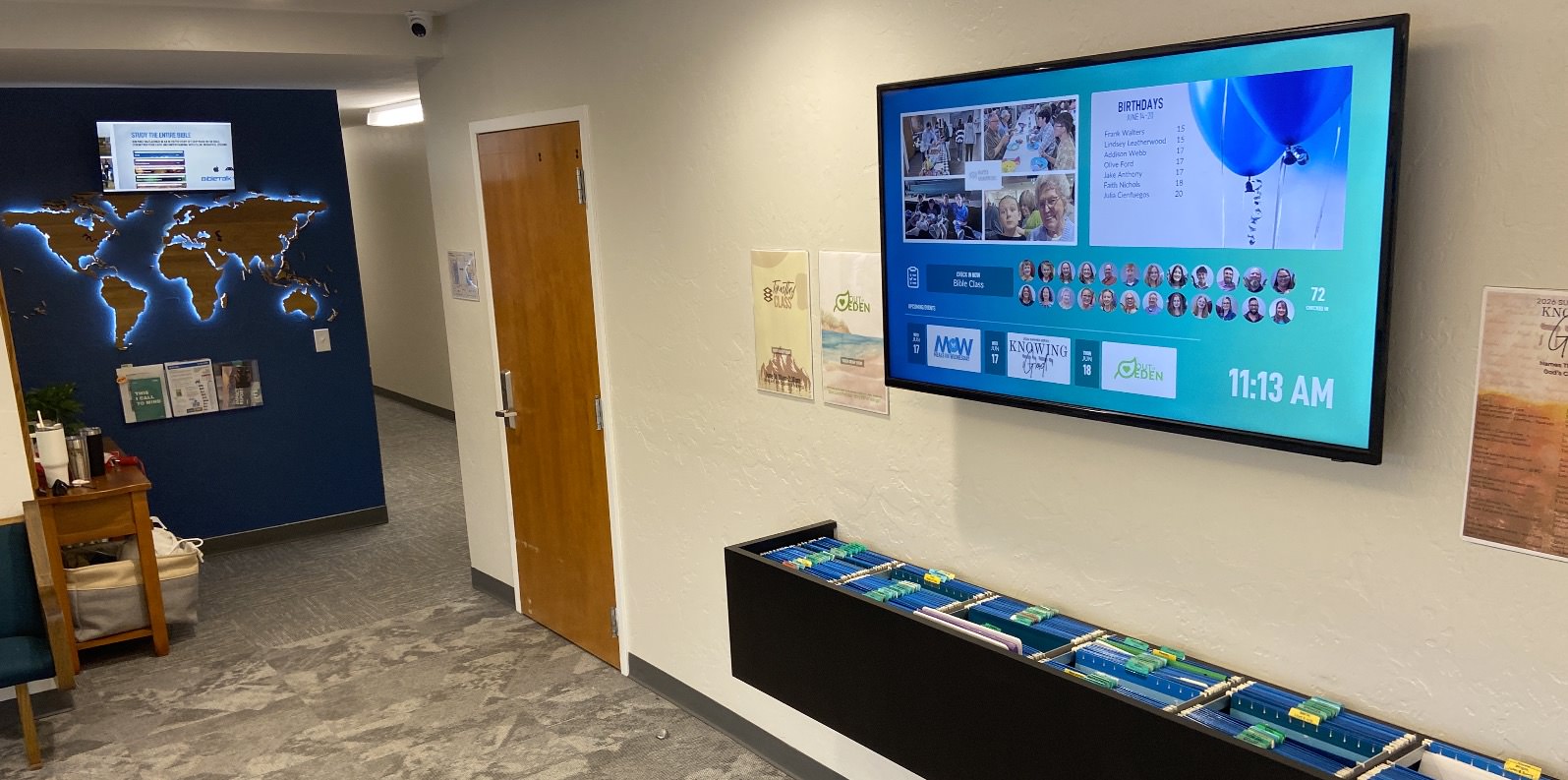
The Screens feature allows you to display announcements, event information, welcome messages, and other content on televisions throughout your building.
Each Screen has its own web address. For example: https://choctaw.church/screens/announcements
Open your Screen's web address on any device that can display a webpage, and then connect that device to your television.
Many smart TVs include a built-in web browser. Open the browser, enter your Screen's web address, and switch the browser to full-screen mode if that option is available.
This is usually the simplest setup because no additional computer or equipment is required.
Things to consider:
Connect a desktop or laptop computer to the television using an HDMI cable. Open the Screen in a web browser and place the browser in full-screen mode.
This is one of the most dependable options and works well when the computer can remain connected to the television.
Most browsers enter full-screen mode by pressing F11 on Windows. On a Mac, use the browser's full-screen button or press Control + Command + F.
OBS Studio is a free software that can be used when you want to combine your Screen with cameras, videos, logos, lower thirds, or other media.
Add the Screen as a Browser Source in OBS, then send the OBS program output to the television through an HDMI connection or compatible video-output device.
This option is especially helpful if you are already using OBS for your live stream.
We bought a graphics card that had multiple HDMI outputs and ran then a TV in the foyer that rotates an a Photo Collage Rotator Layout of pictures from our missionaries on one wall and a Members Layout on the wall above our member's mail boxes.
!!! Make sure the checkbox at the bottom Shutdown source when not visible is uncheck.
If it is check the screen will be blank unless it is in the program window. This always you to run your live stream and have the TVs display in the background.
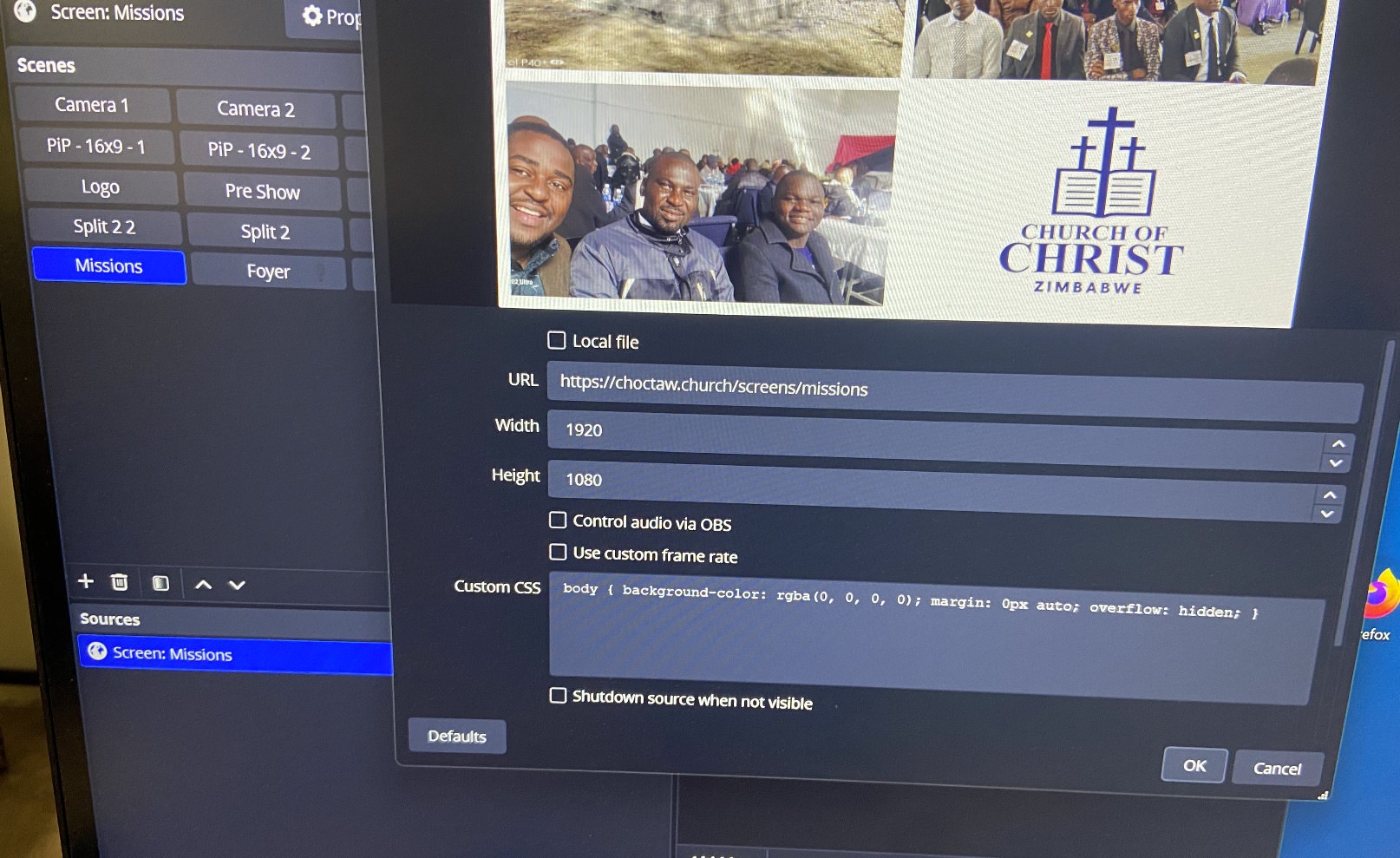
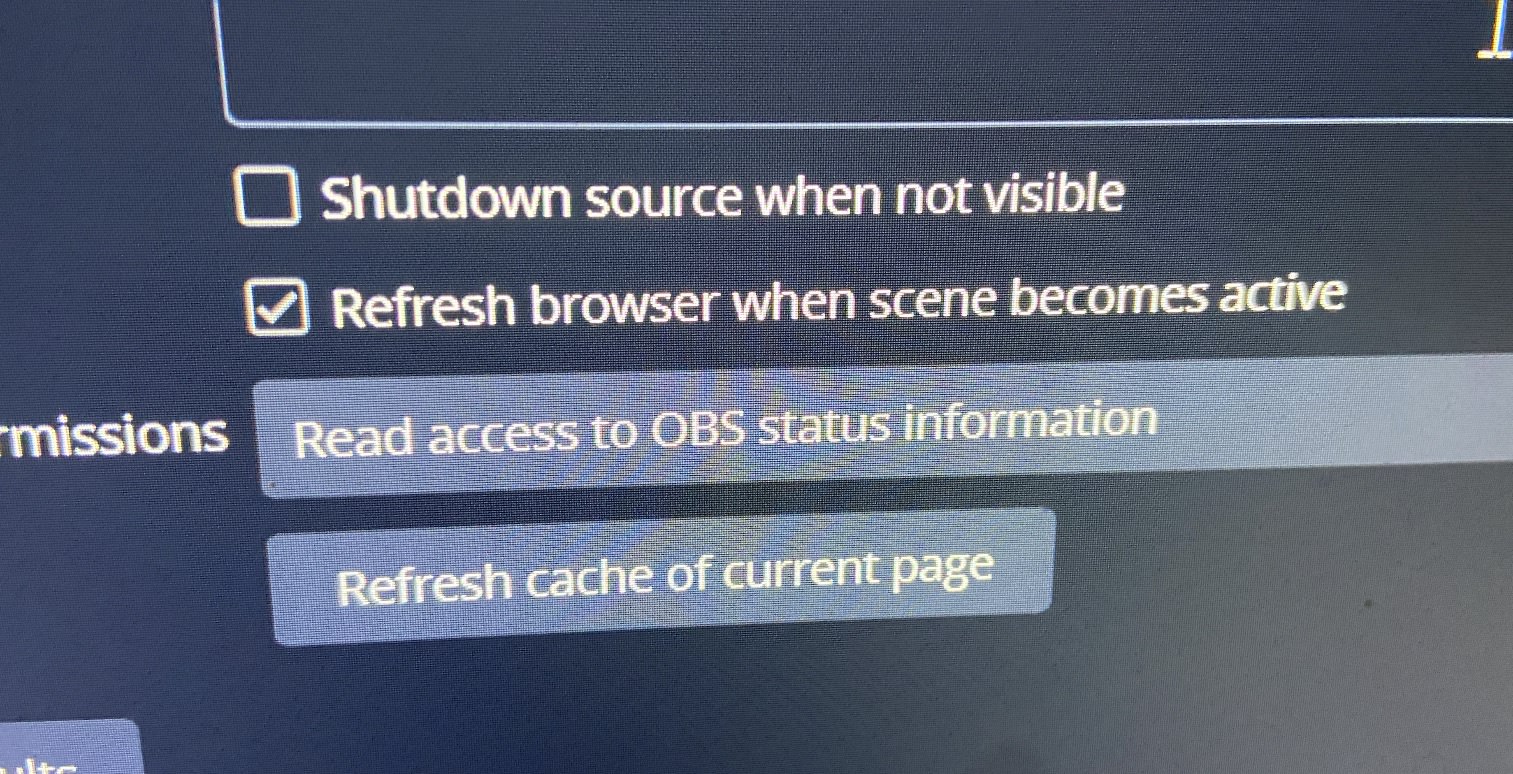
Another setting is not visible in the picture above but that is Refresh browser when scene becomes active. This will refresh the data every time you open OBS, if not the layout might get stuck with old data.
If your screen goes black or continues to show old data, click on the Source and look for the Refresh button up above (top right of the image below). This should reload the webpage.
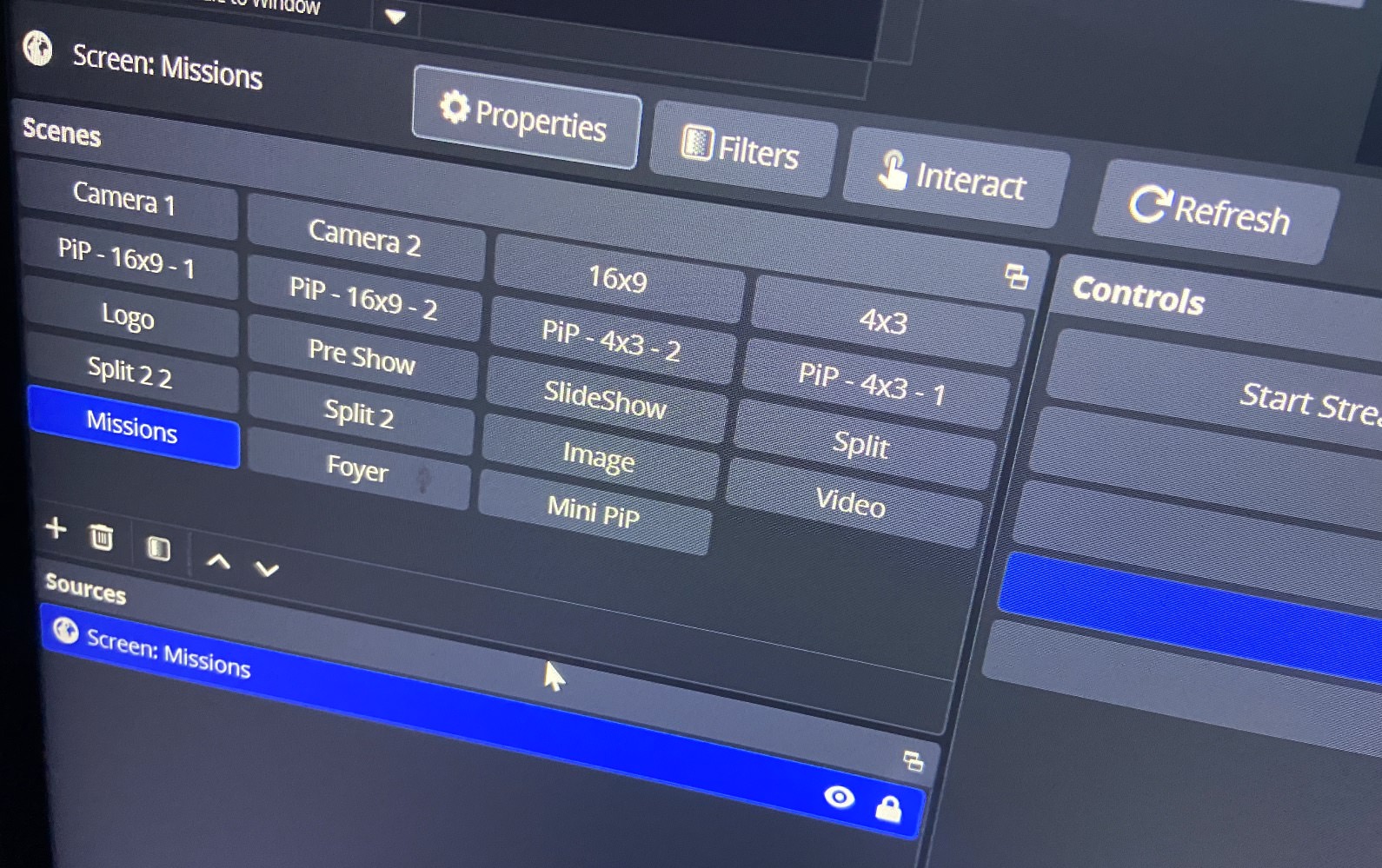
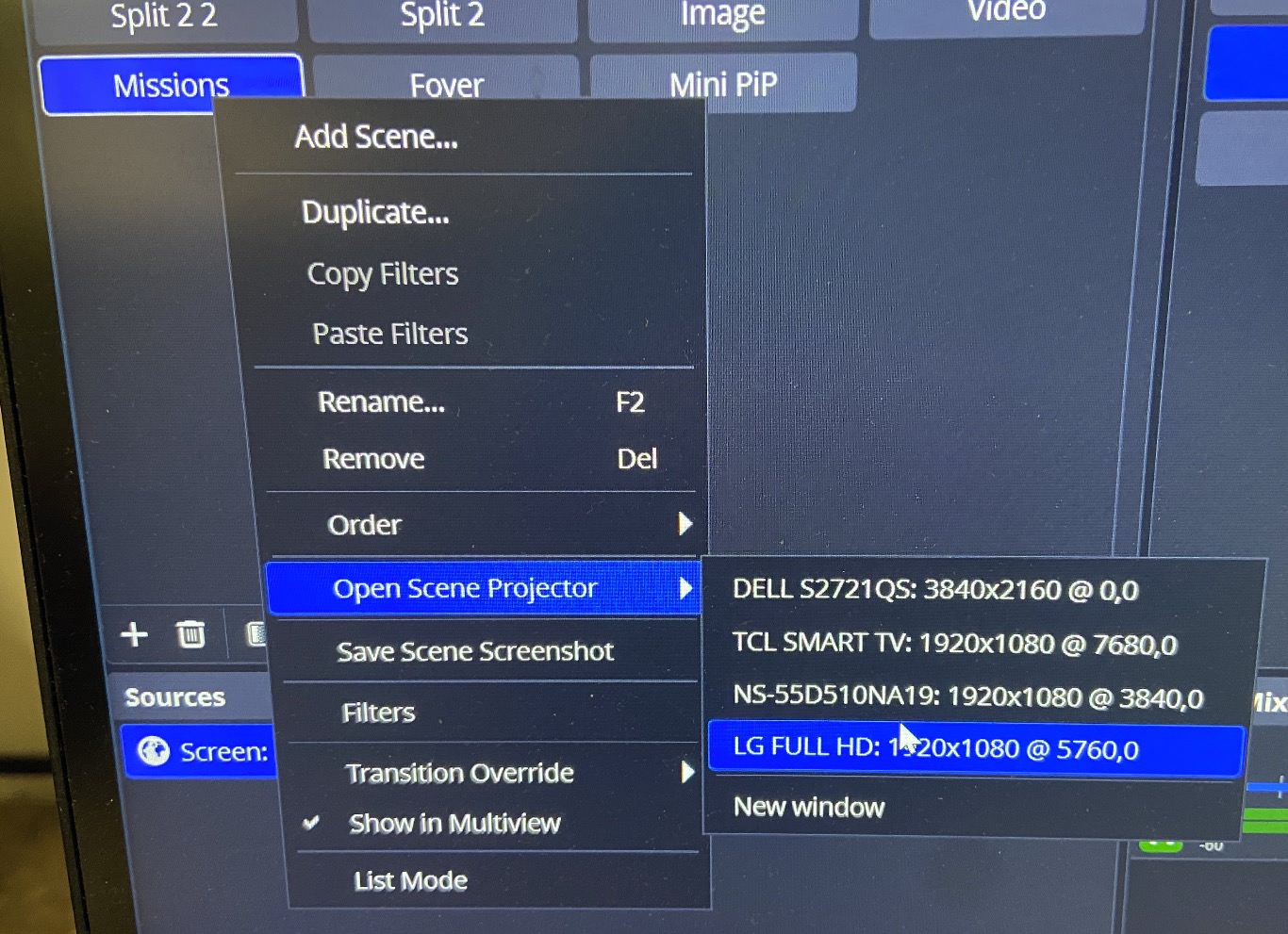
To get just that Scene to display on a specific TV, right click on the Scene block and go to Open Scene Projector and then select the TV.
A streaming device connected to the television may be able to display the Screen through a browser or digital-signage application.
Possible devices include:
Browser availability and capabilities vary by device. Test the Screen before purchasing equipment for several televisions.
You can open the Screen on a phone, tablet, or computer and cast or mirror it to a compatible television.
Common options include:
Casting is convenient for temporary displays, meetings, and special events. For a television that needs to display announcements throughout the week, a permanently connected device is usually more dependable.
A small computer can be permanently mounted behind the television and connected with a short HDMI cable.
Examples include:
The computer can be configured to open the Screen automatically when it starts. This is a good option for lobby, hallway, classroom, or welcome-center televisions that need to operate every day.
A dedicated digital-signage player is designed to display web content on a television continuously.
These devices are often connected behind the television and can be configured to automatically open a specific webpage whenever they start.
This option may be helpful for churches with several televisions or locations where the display needs to recover automatically after a power or internet interruption.
If your church already has a computer running presentation software, that computer may be able to display the Screen on an additional output.
Depending on your setup, the Screen can be opened in a browser and sent to a lobby television, overflow room, classroom, nursery or other display.
Be careful not to interrupt the computer's primary presentation or worship-service output.
For a television that will display your Screen throughout the week, we recommend using one of the following:
A wired HDMI connection is generally more dependable than wireless casting for a permanent display.
For the best experience, configure the connected device to:
The device displaying the Screen must have a reliable internet connection so it can load current announcements and changes.
A wired Ethernet connection is preferred when available. Wi-Fi can also work, but the signal should be strong and dependable near the television.
Changes made to your Screen should appear when the webpage refreshes. If new content does not appear, refresh or reload the browser.
You may also configure the browser or display device to reload the webpage periodically. This can help the Screen recover after a temporary internet interruption.
Place the browser in full-screen or kiosk mode. The exact steps depend on the browser and device being used.
Check the television's power-saving, screen-saver, inactivity, and automatic-input settings. A connected computer or digital-signage player may be more reliable than the television's built-in browser.
Disable sleep mode, hibernation, screen savers, and automatic display shutoff on both the television and the connected device.
Confirm that the television is using the correct display resolution. You may also adjust the browser's zoom setting, although the default zoom level is normally recommended.
Refresh the browser. If the old content continues to appear, close and reopen the browser or restart the display device.
Test your preferred setup on one television before purchasing equipment for multiple locations. Confirm that the device:
Once the test television is working reliably, the same setup can be repeated on other televisions throughout the building.

