
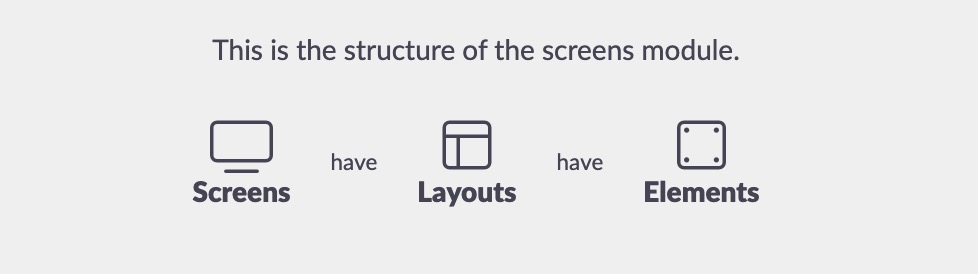
Layouts are used to show content on your screens. The breakdown goes like this:
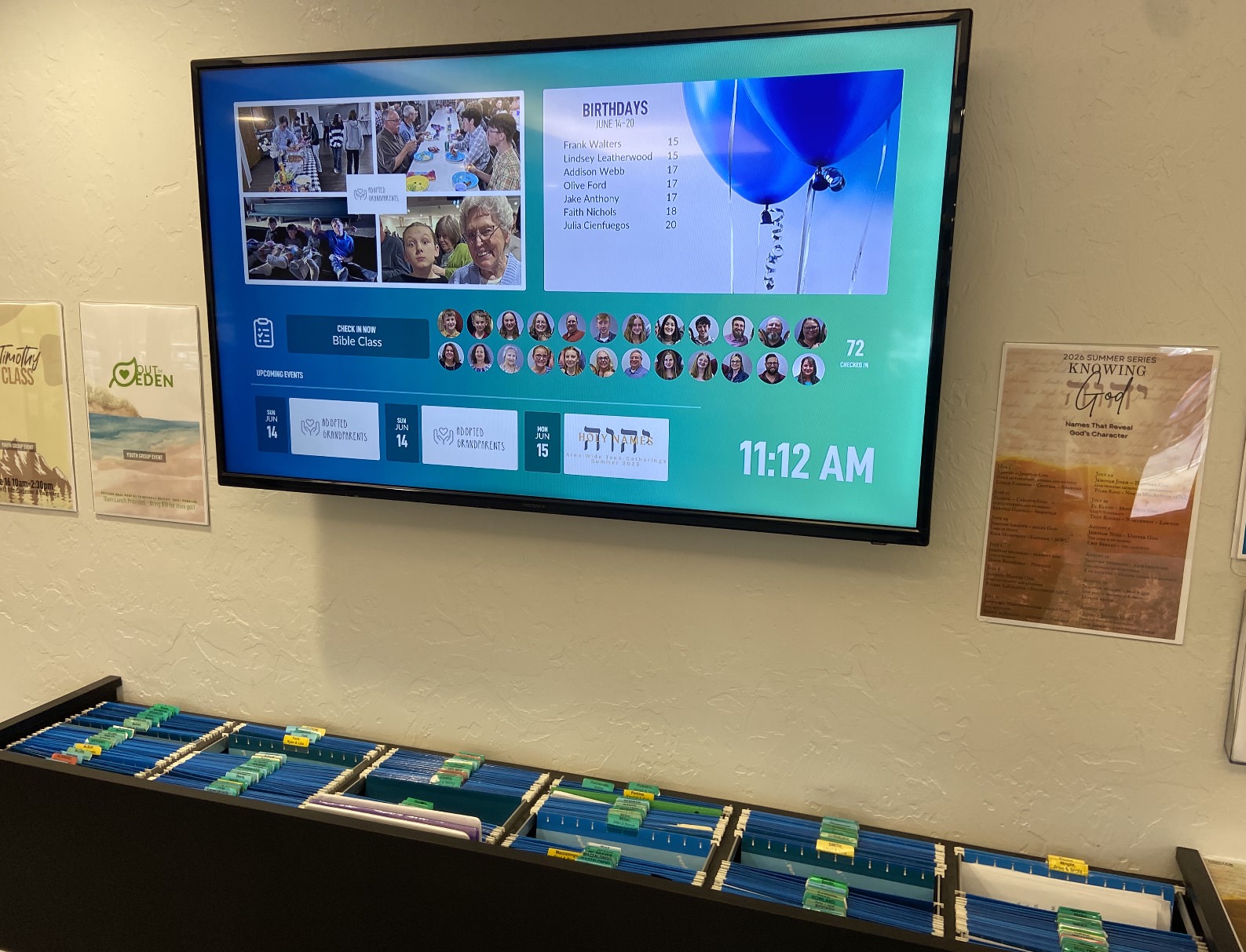
So let's create a layout for our Member's Area screen that looks like this:
Navigate to the Screens section of the admin.
In the top right corner, tap the Layouts button.
The tap the + Layout button.
You will then be presented with the options:
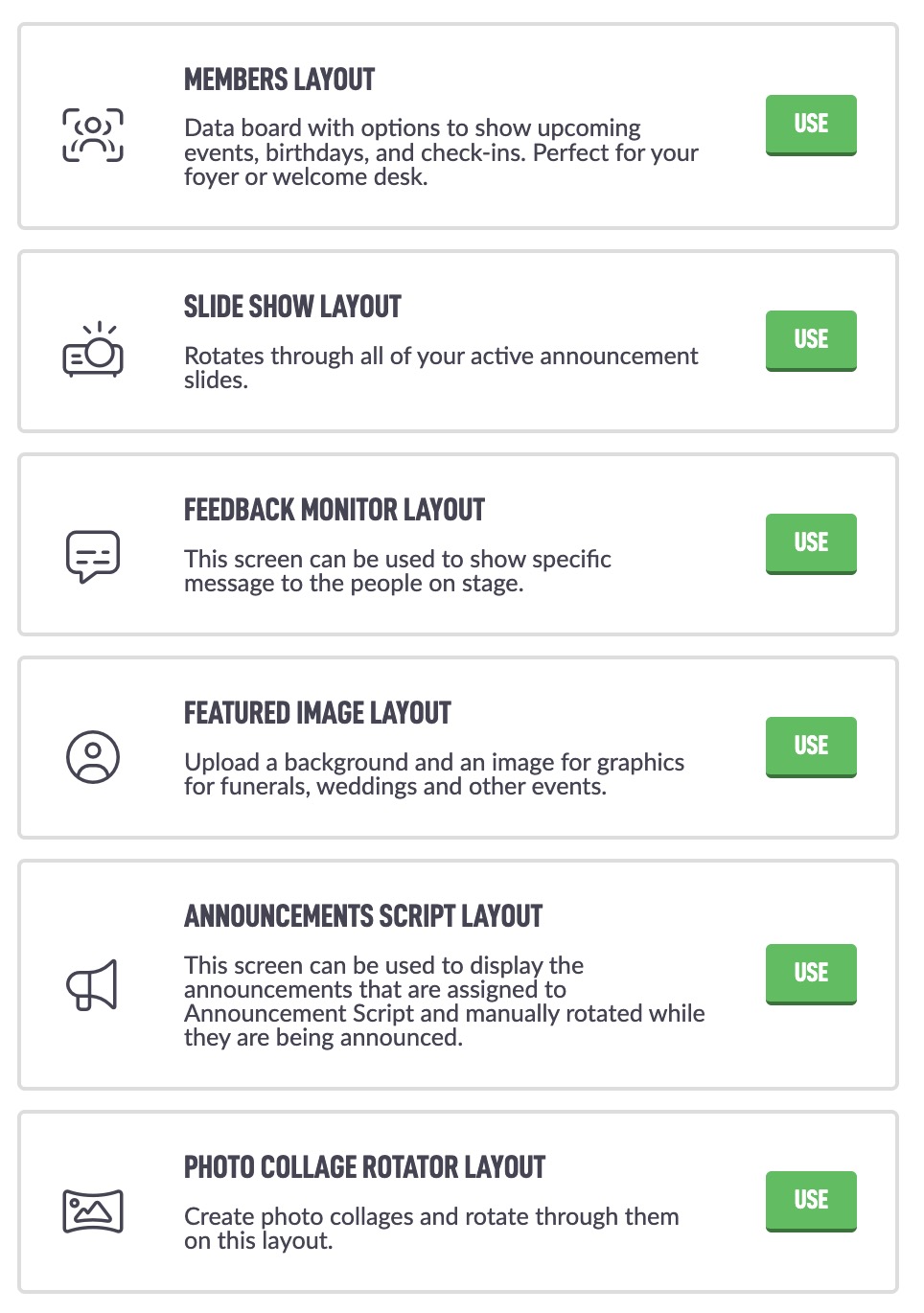
Let's create the Members layout, tap Use on that row.
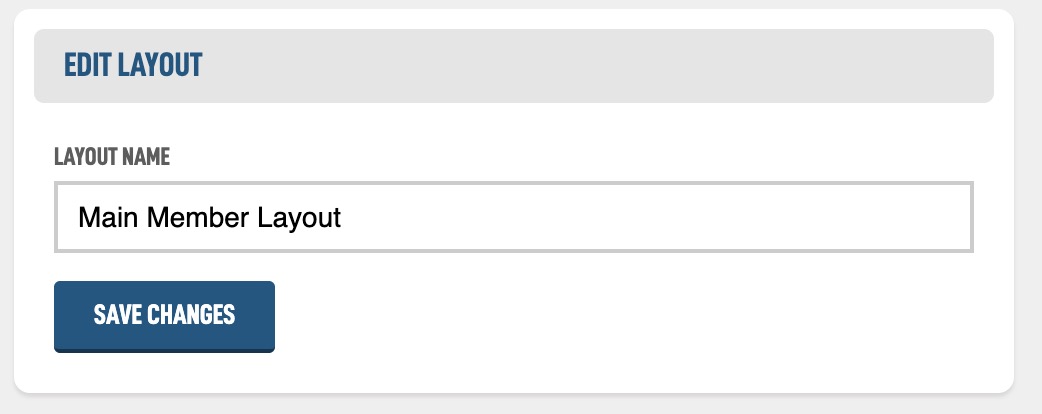
The first thing we'll do is give it a name and hit save. We may have multiple member layouts that show at different times of the day or on different days, so let's create a Main Member Layout.
This could also be set as the default layout later on, so if nothing has been set for a specific time it will fall back to this design.
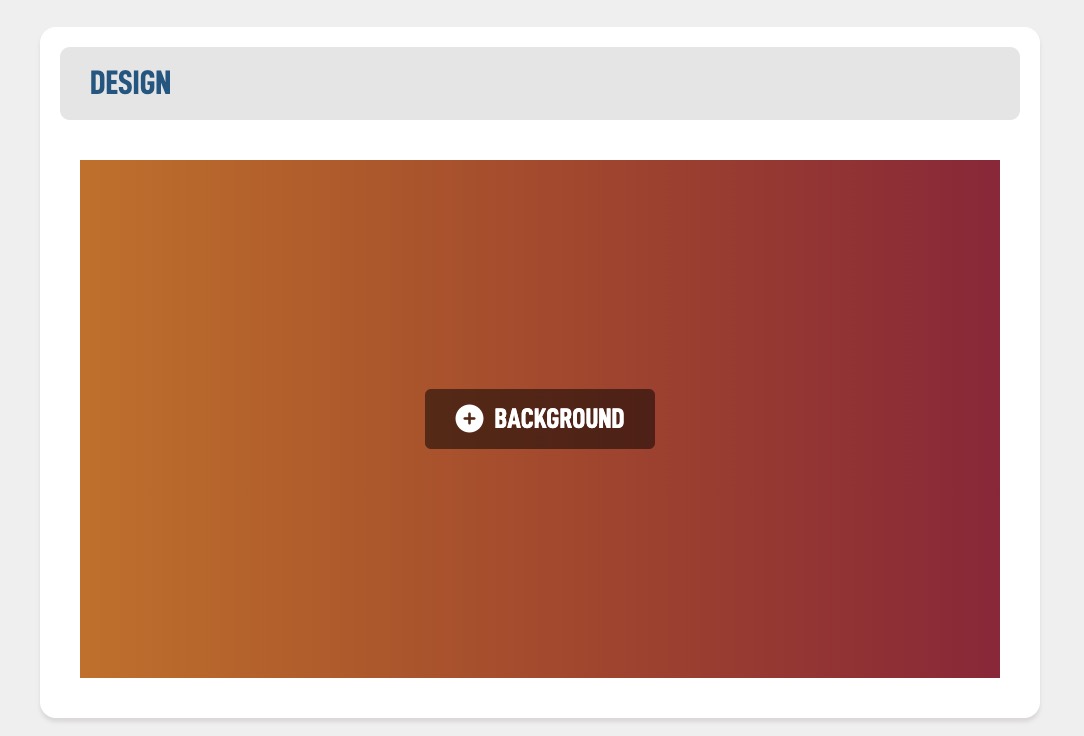
Next you can leave upload a 1920x1080 graphic for your background or just use the built in Site Settings gradient colors. Hit the + Background to upload your custom file. We'll stick with the default gradient.
Now we have a few options to choose from. Select the options you would like to display. The layout automatically adjusts based on what you have selected and should fill the space of your screen nicely.
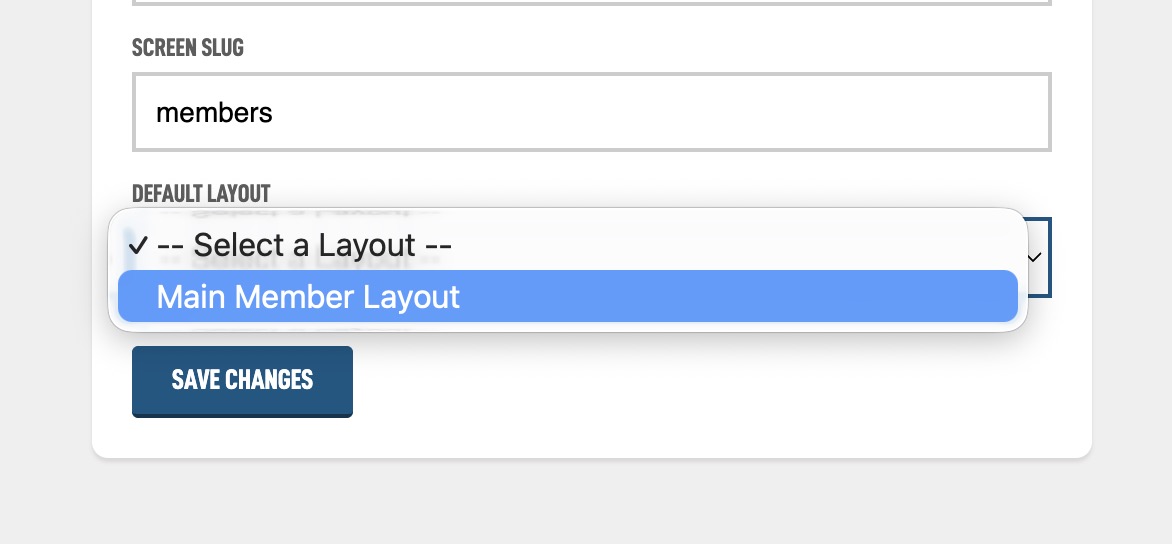
If you navigate back to the main screens listing and then tap on a screen. You can see the last option Default Layout. Select the layout you just made so it can be visible.
Then you can tap the View button in the top right corner to see what it will look like.

