
Your podcast can be uploaded to a few different platforms. At the time of this writing we have links available for four different platforms: YouTube, Apple, Spotify and Amazon Music.
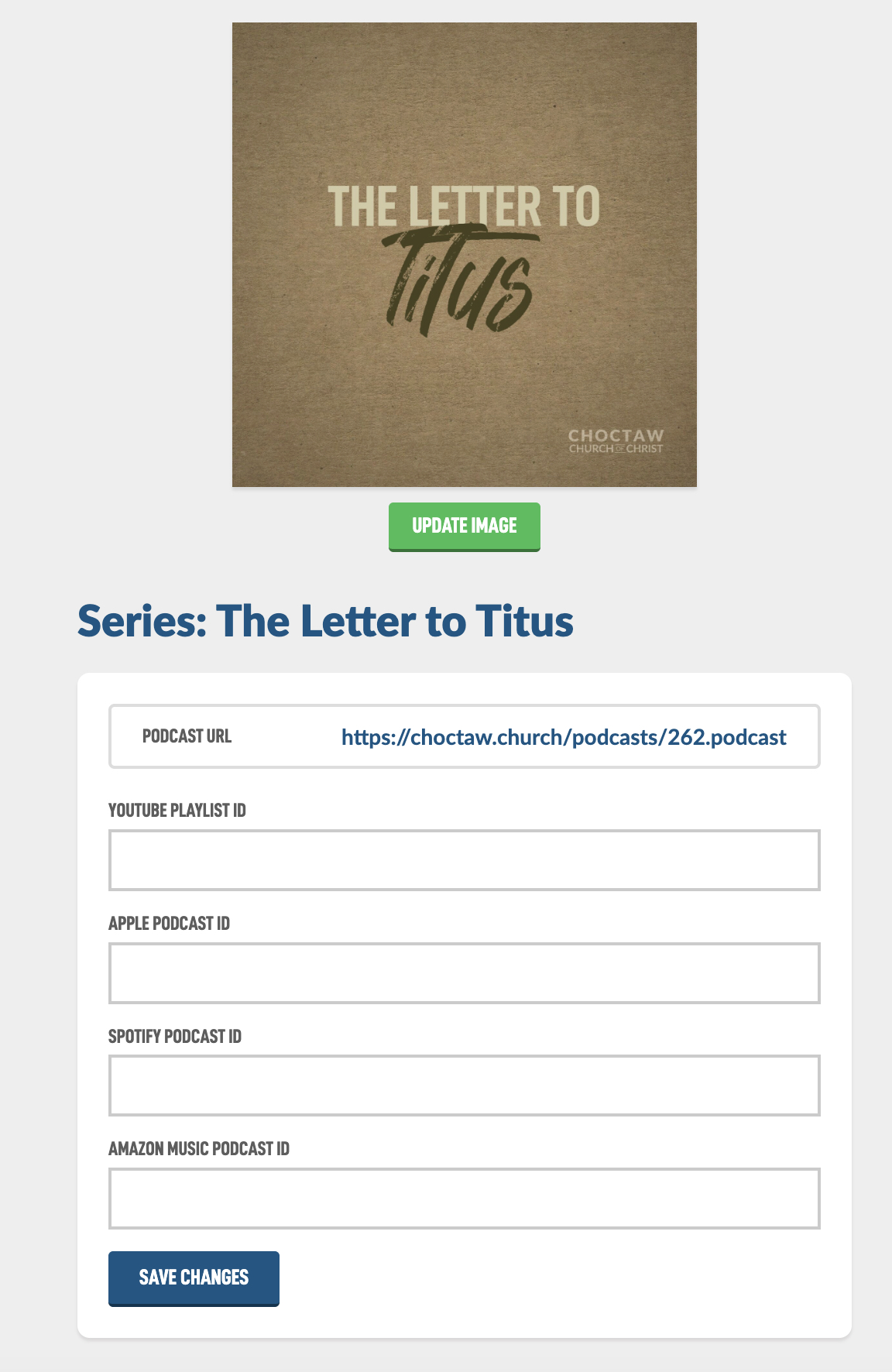
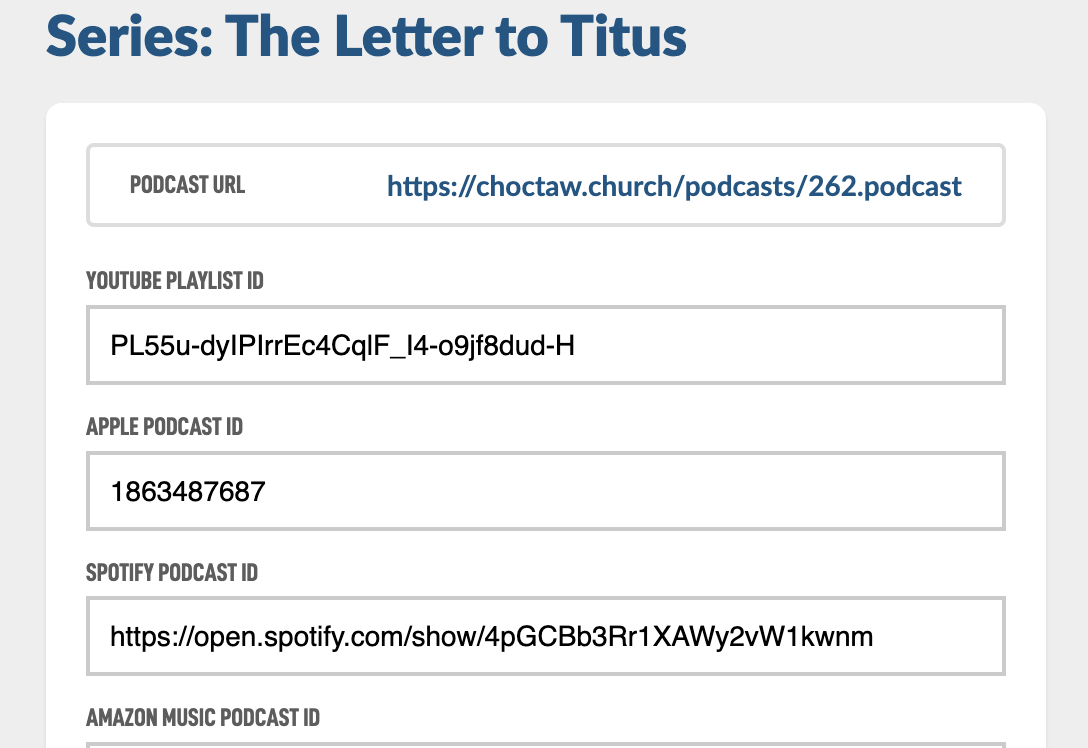
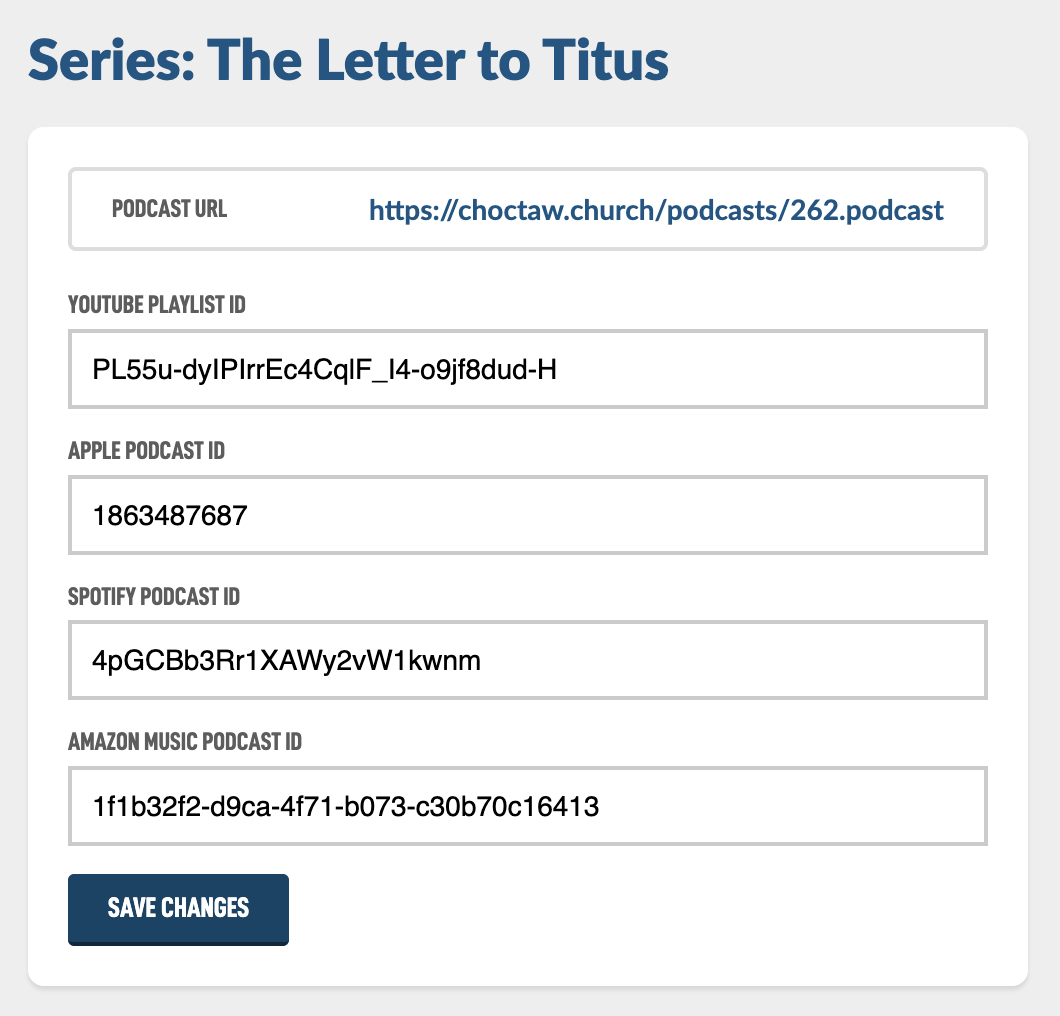
For this Help Guide we'll be submitting a real podcast from our congregation called The Letter to Titus. Here is our podcast image we created. Here is a Help Guide on creating nice Podcast Images. Also here are the form fields we will need to create.
YouTube provides a specific type playlist for Podcasts, you can use that or a generic playlist. I currently use the generic playlist because we host our videos in there and I think it looks better in the YouTube platform.
Inside of YouTube Studio, create a playlist and add your episodes to your playlist. Then tap into the Playlist which is a sub page of Content.
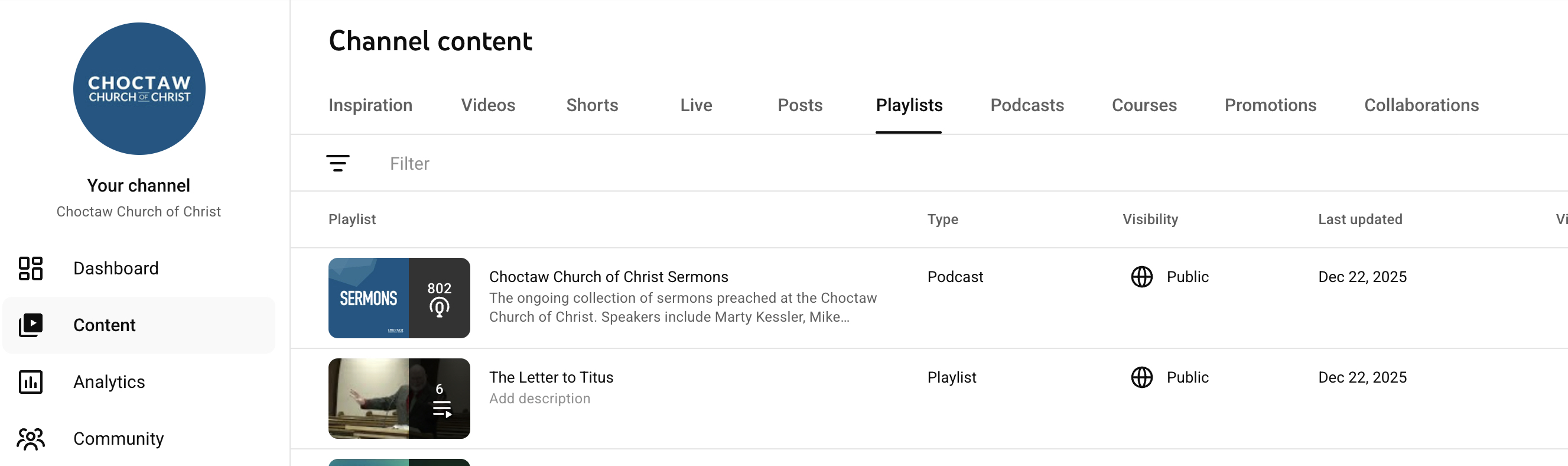
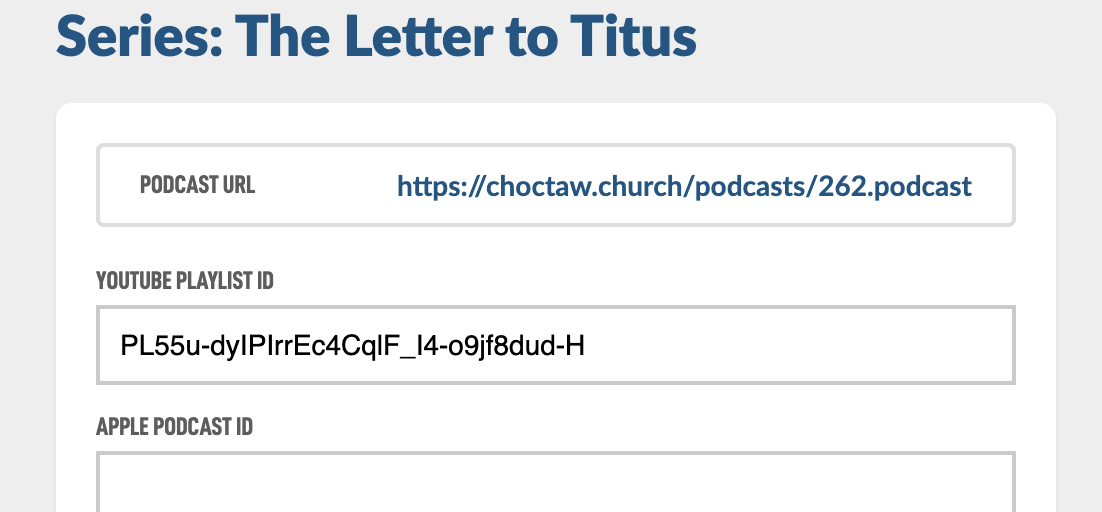
You can see we have our Titus podcast there, tap on it will bring you to the edit page. Look into the address bar of your browser and you can see the Playlist ID that you need.


Now add that ID to your form field.
To submit your Podcast to Apple you will need to create an account at the Apple Podcasts for Creators page: podcasters.apple.com
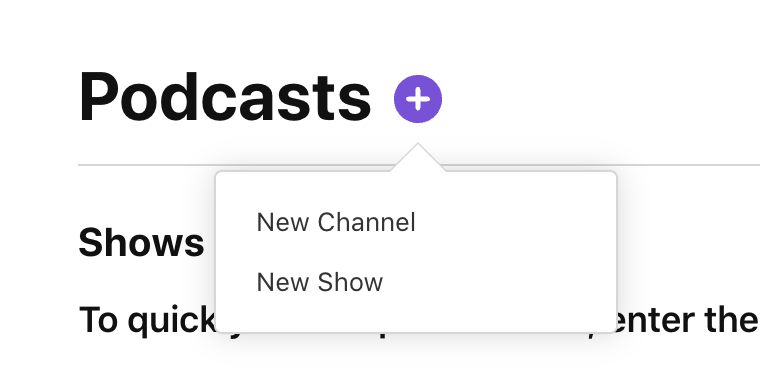
After you have created an account, tap on the Plus sign next to Podcasts and then choose New Show.
Now choose Add Show with an RSS feed

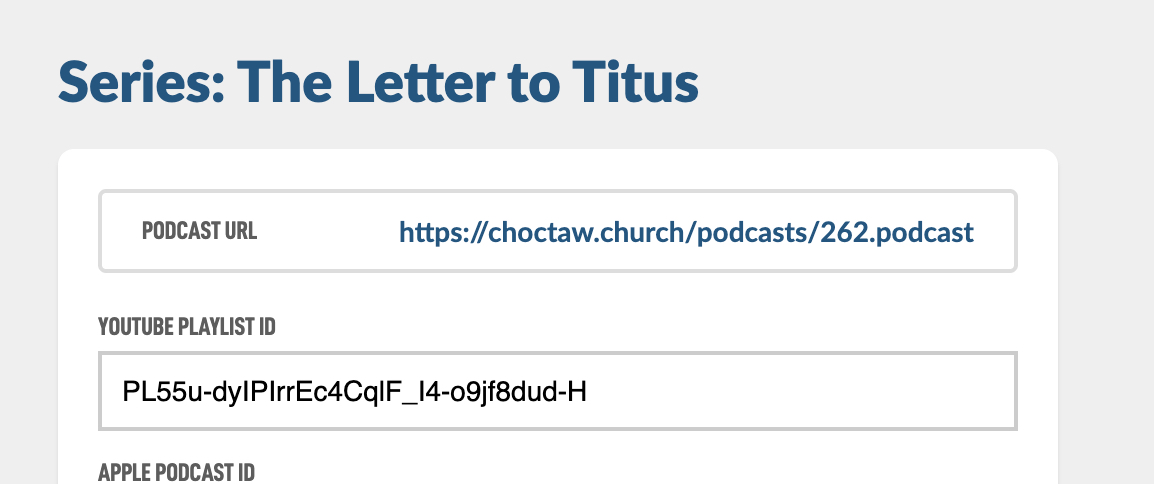
Back in the admin page you can see the RSS feed URL to your Podcast.
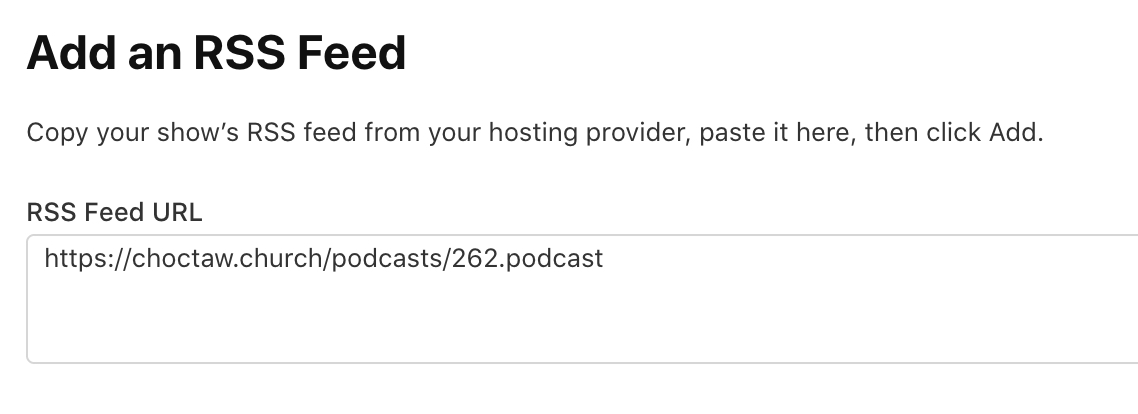
Add the RSS feed URL to the next form field and then hit Add.
They take a little time processing your podcast, after it is complete. You can refresh your page to and see the options they have for you and you should see the Publish button in the top right. Tap that to submit.
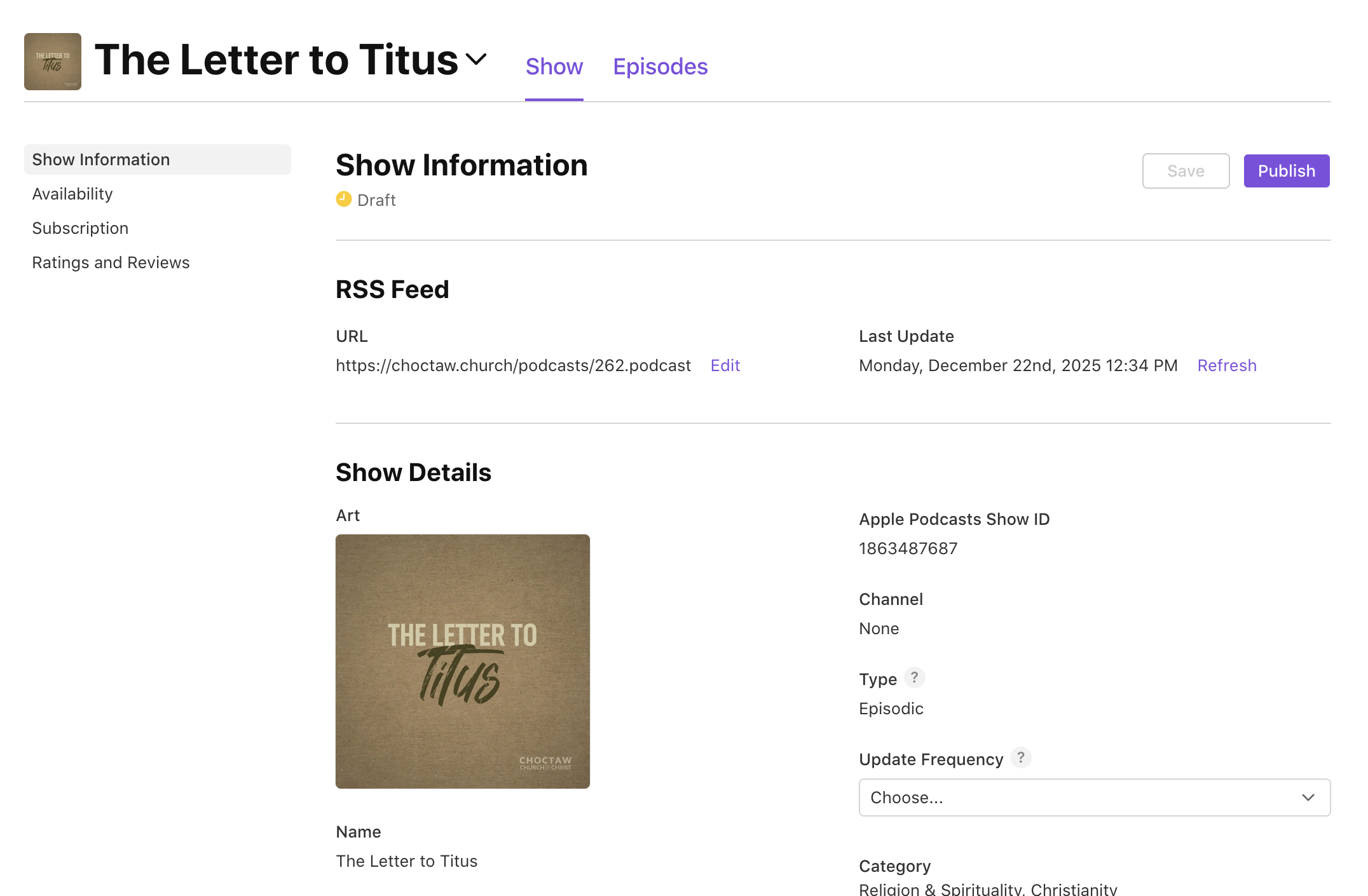
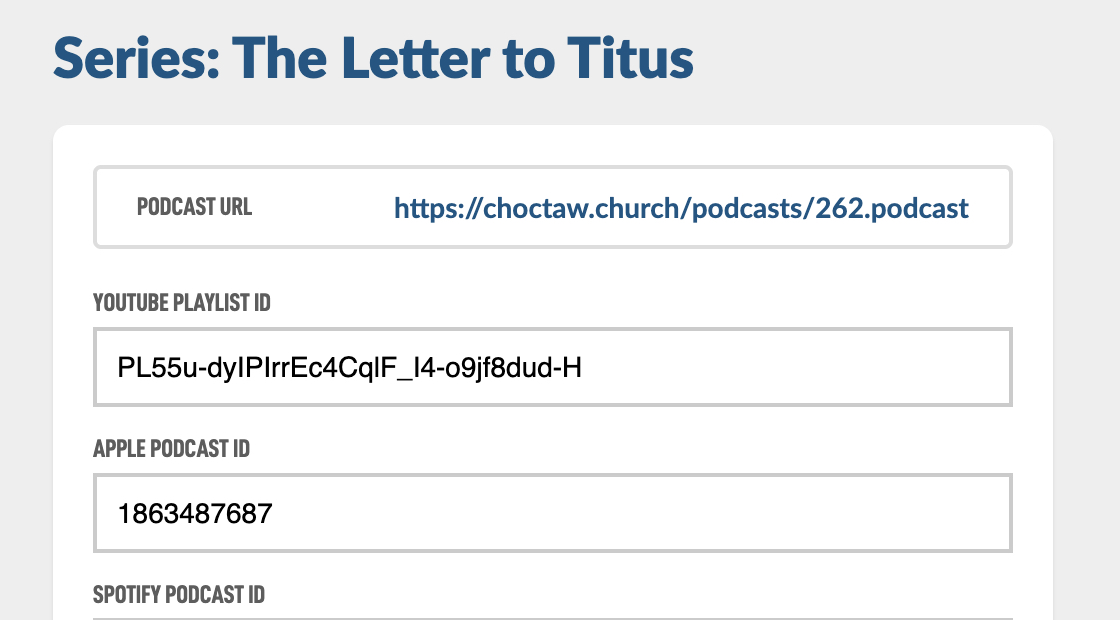
While that is submitting you can grab the Apple Podcasts Show ID. That is the piece of data we need for our system. Copy that into the Apple field in your admin edit page.
To submit podcasts to Spotify you need to create a Spotify account and log in with it at Spotify for Creators. creators.spotify.com
Once you are logged in, tap the Profile Icon (or Letter) in the top right.
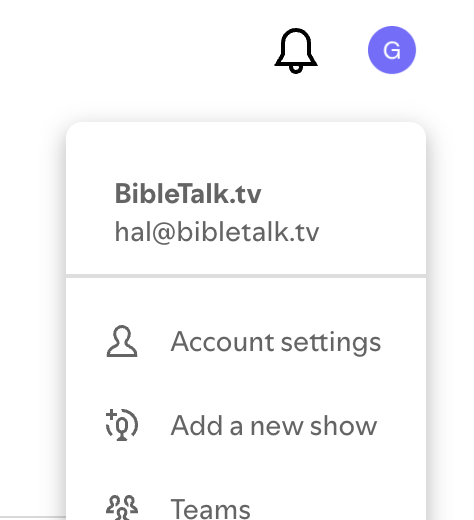
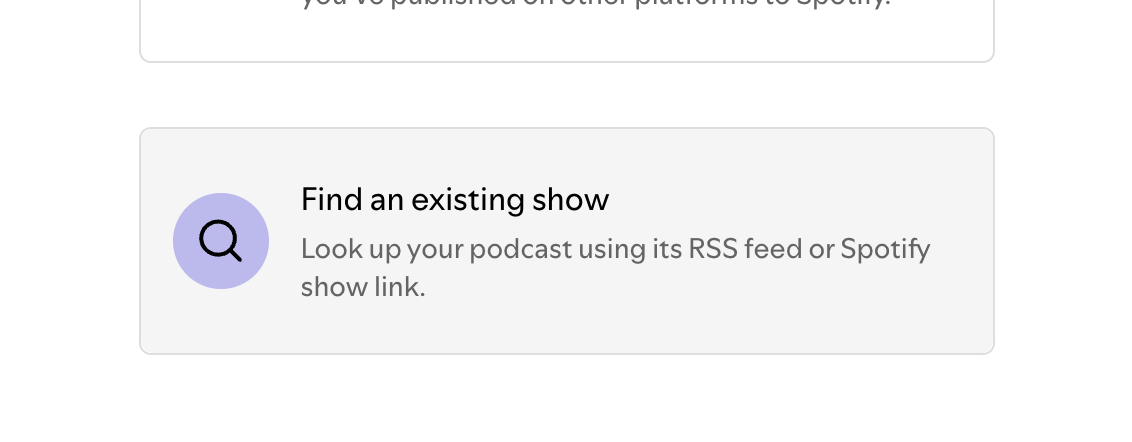
In the drop down choose Add a new show. On the next form choose Find an existing show, you're always looking for the RSS feed option.
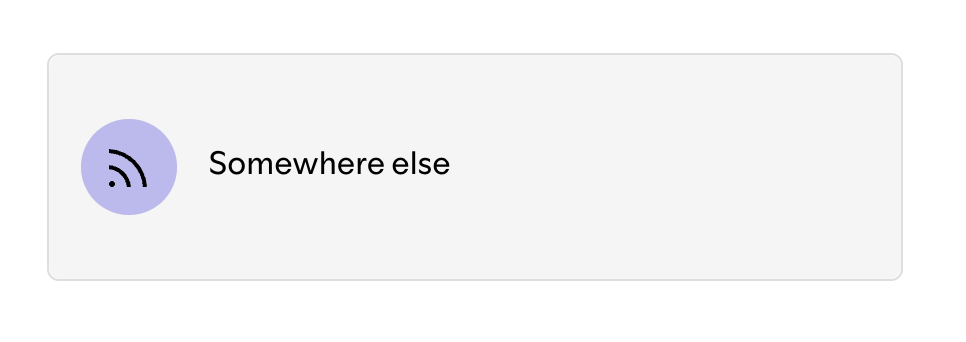
Then on the next form Hosting, choose somewhere else, because we are hosting it at BibleTalk.church.
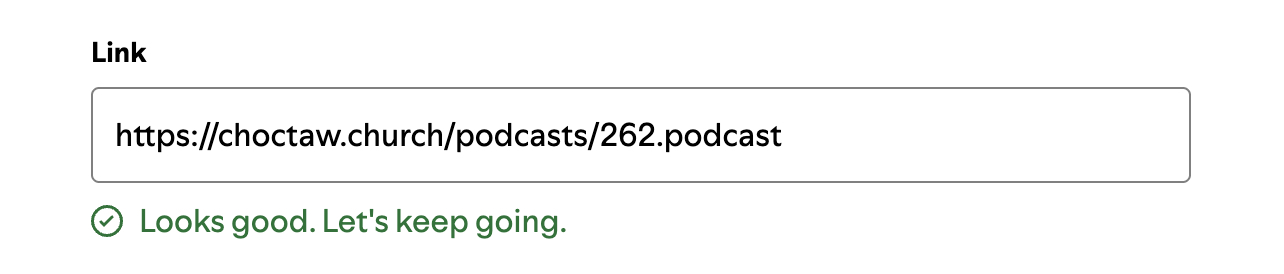
Now we need to go back to the admin to get the RSS feed URL again to paste in the next form. It will load for a second and let you know if it looks good.
After you hit next it will prompt to send a code to the email associated with the podcast.
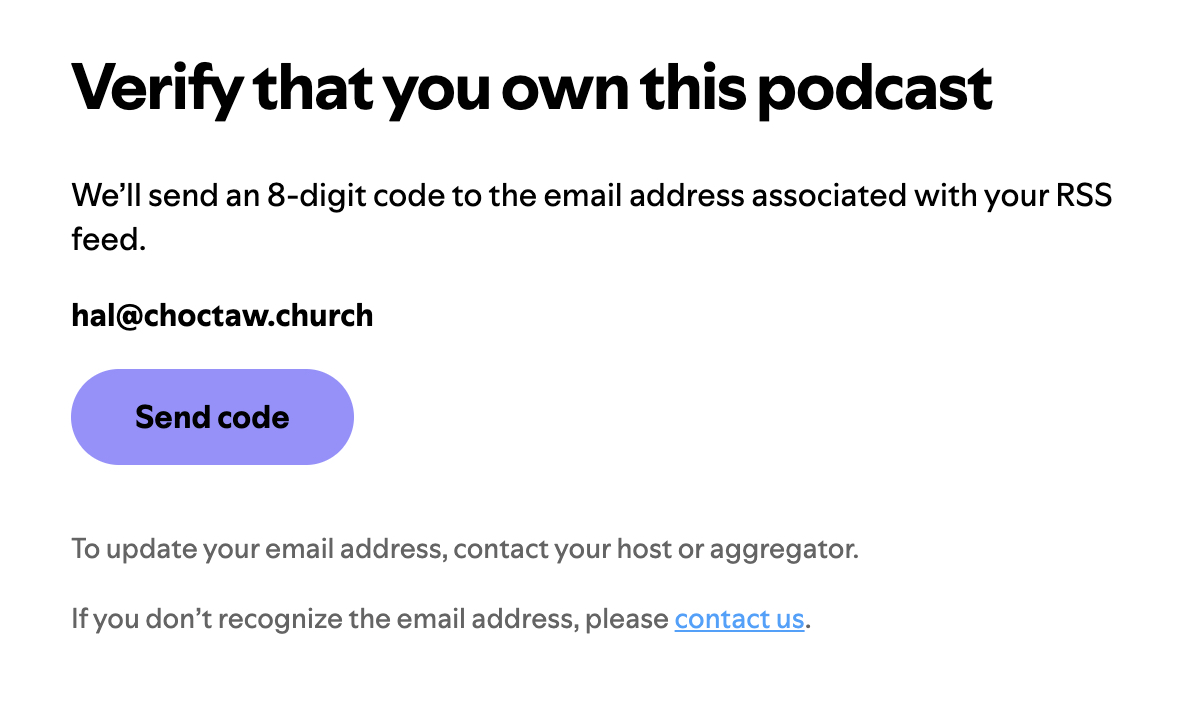
If you need to change the email associated with your podcasts, see the Podcast Email Help Guide.
After you have hit Send code, it will email you the code to enter on the next screen. Continuing along you will have a few options to select. Here is what we recommend.
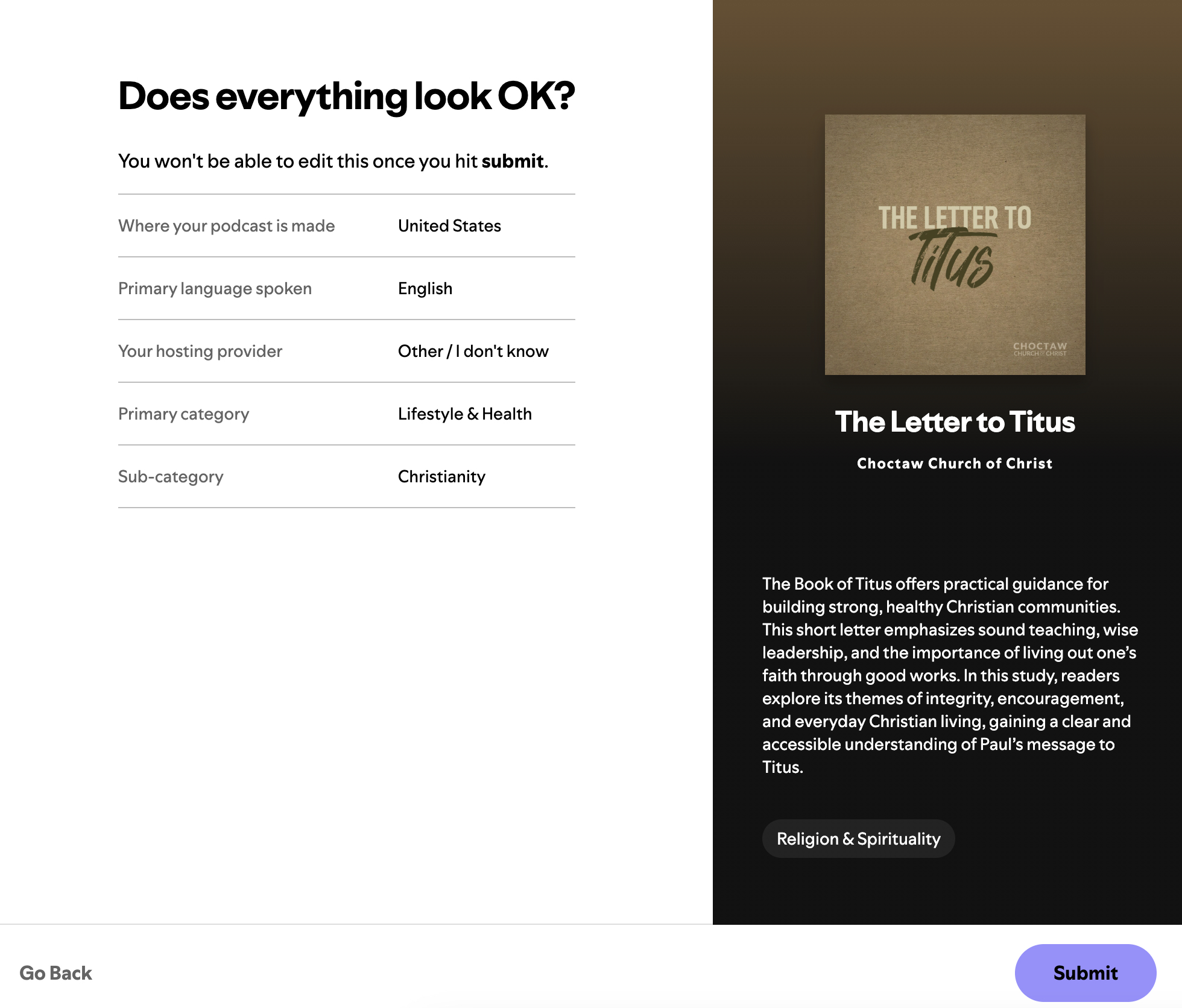
Then you can hit Submit to finish the process. Spotify throws a party in your browser and you can click the Copy Link option to get the full URL.
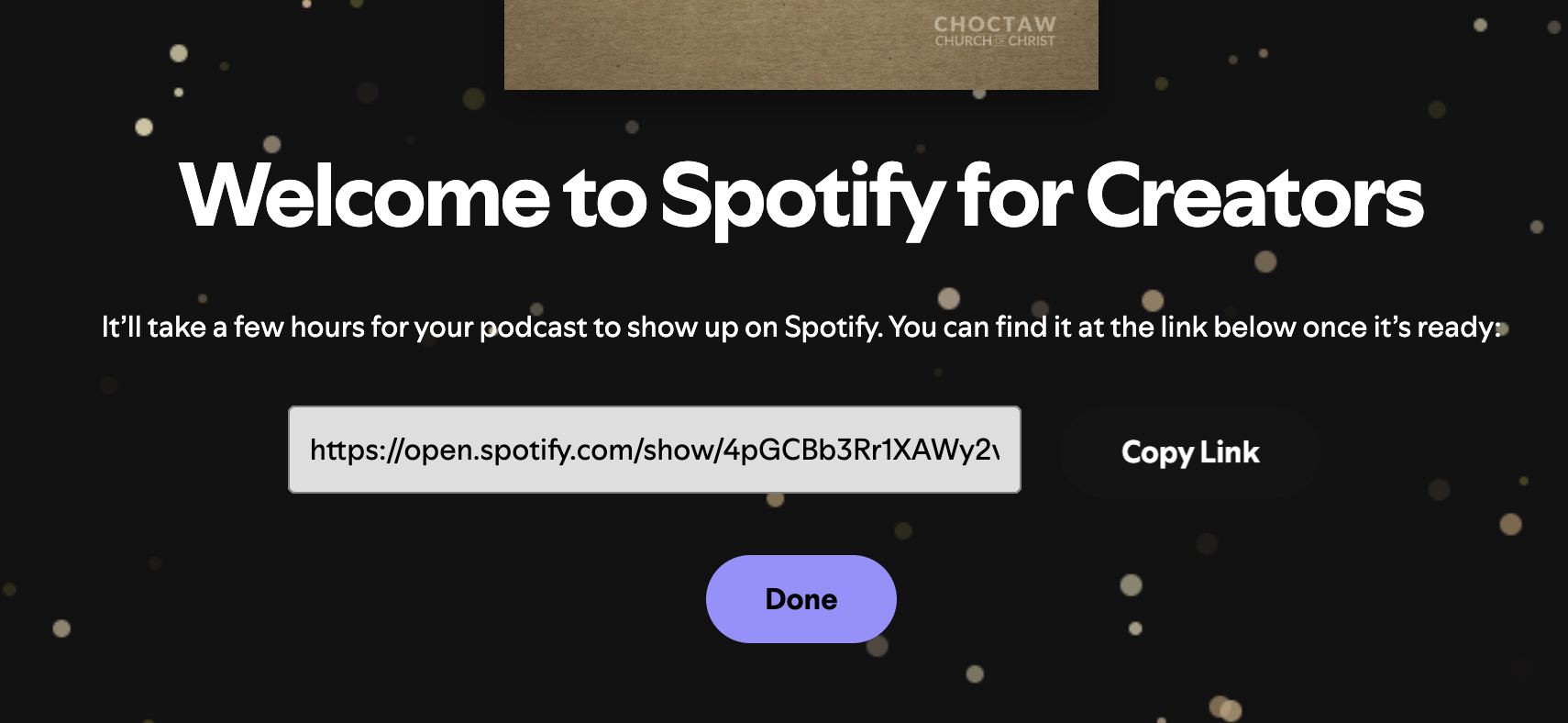
Then go back to the Spotify Podcast ID field and paste the full URL in there, our system will automatically remove the extra stuff.
To submit your podcast to Amazon, you will need a regular Amazon account and access the Amazon Music Podcasters platform at podcasters.amazon.com
After account creation and logging in, you should see an Add or claim show option on the main navigation.
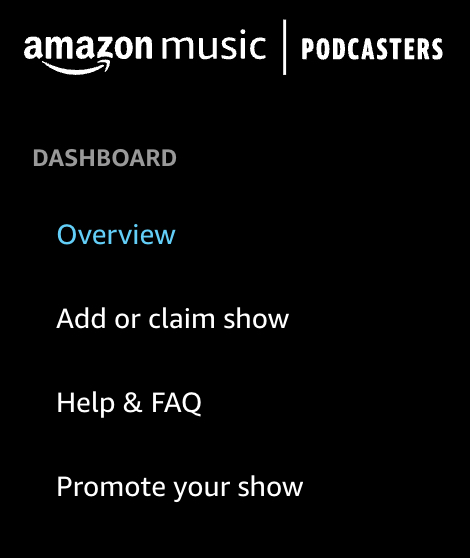
This will present you with the option to add your RSS Feed URL once again.
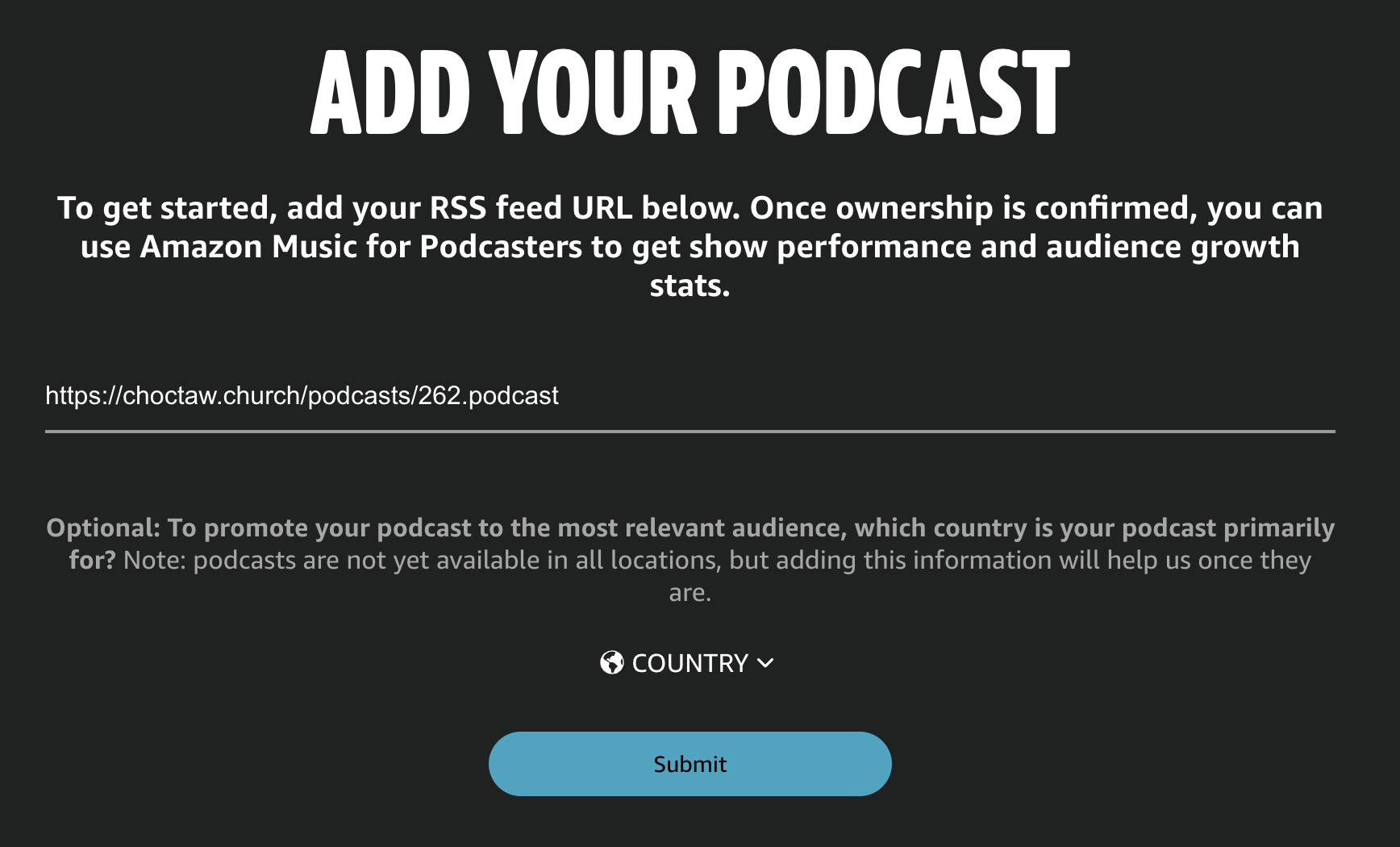
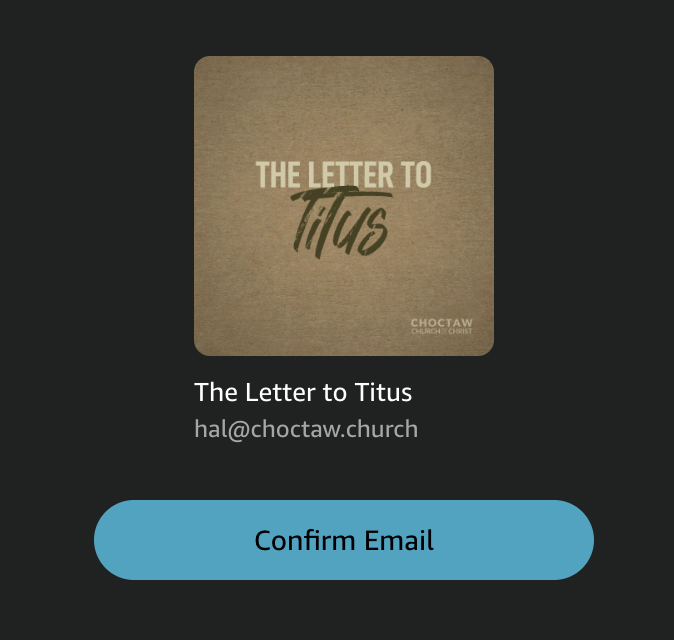
Tap Submit at the bottom to get the process started, similar to Spotify it will confirm your ownership. Tap Confirm Email.
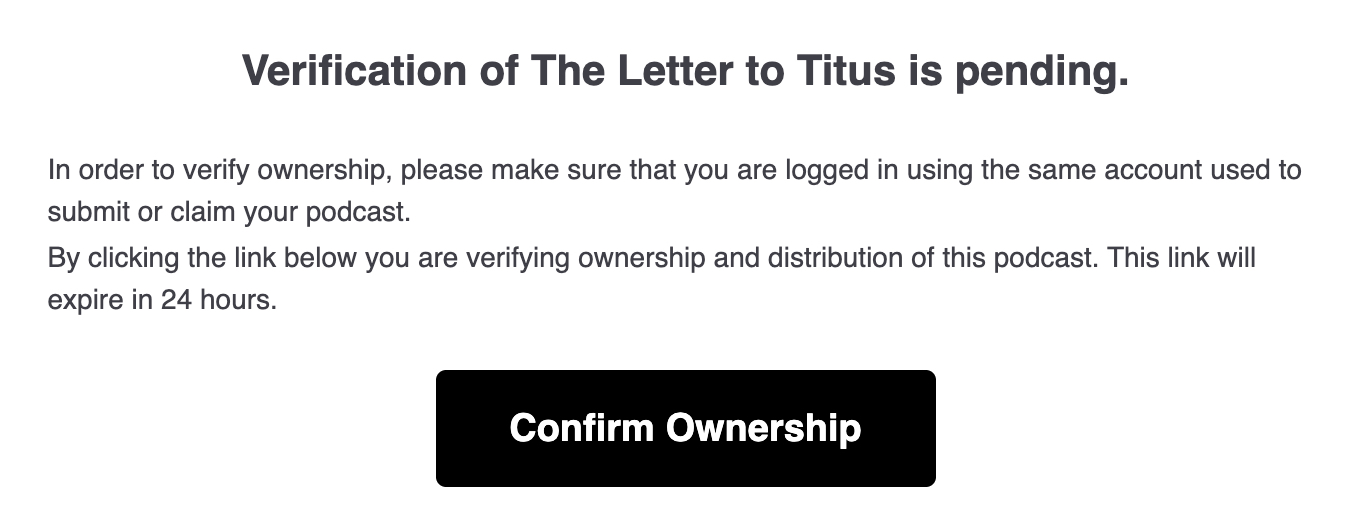
With Amazon you just need to tap the Confirm Ownership button in the email they send you.
It seems to take about 30 minutes to process and back in the list view of your podcasts you will see Pending.

When the process is complete you do receive an email saying it is available. In the email clicking the link will take you to the page in Amazon Music. We need to copy the URL for this one too.

Now you can add the ID from the URL to the field in your admin.
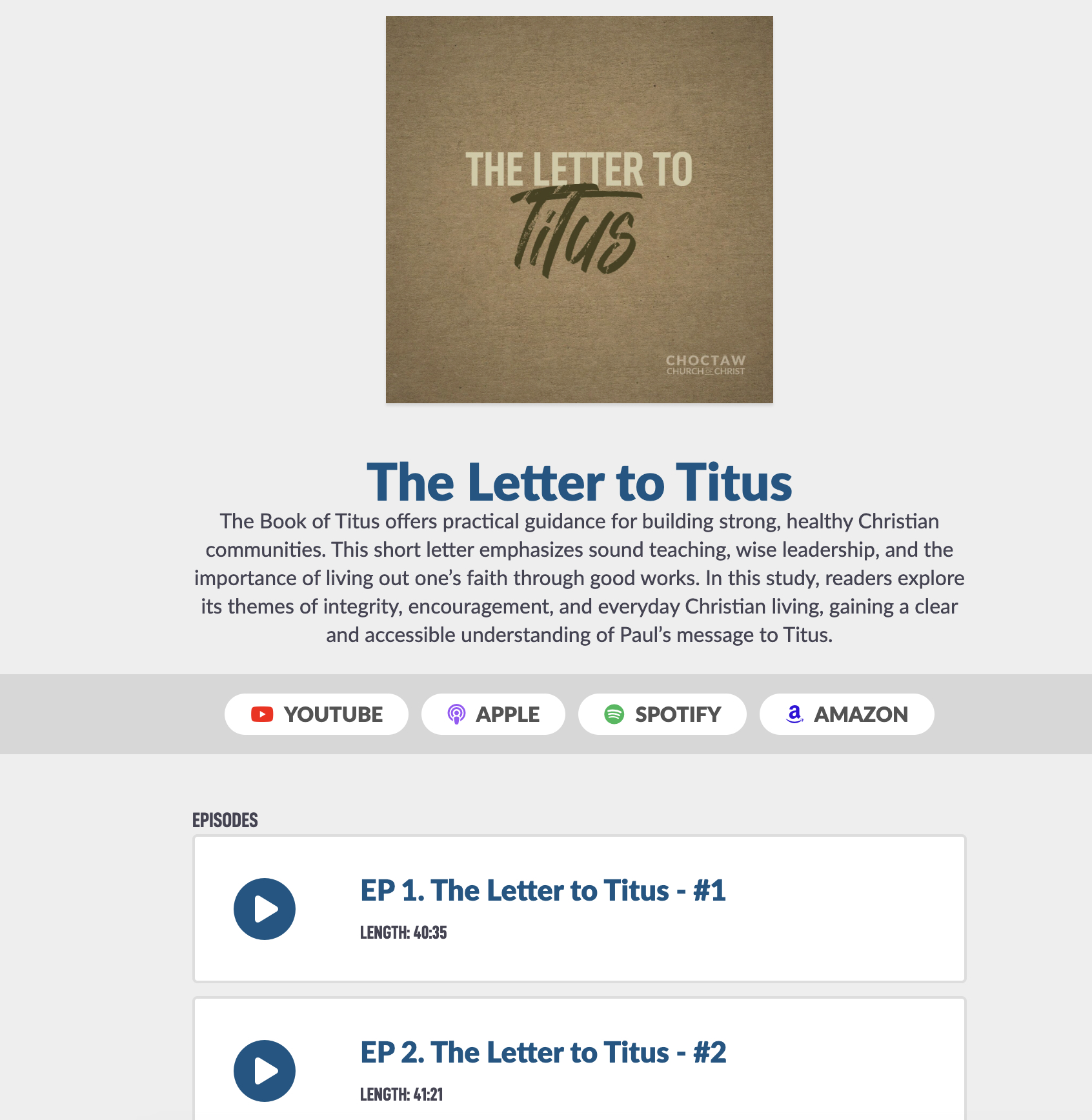
If you click the View in the top right corner you can see your podcast on the public website with the episodes and links to different platforms available.
There are platforms out there to host podcasts like Podbean, Buzzsprout and Lybsyn where you submit your podcast files to them and pay for hosting. You can use them and just add your podcast IDs here and it will work but you do not need to use them.
You can fully host your podcast on our platform with using the information in this Help Guide.

