
In the Pages module of your admin and look for the + Page in the top left corner of the screen.

There are five types of pages that have different functions on your website. I will go over each one to hopefully give you a better idea of what can be accomplished.

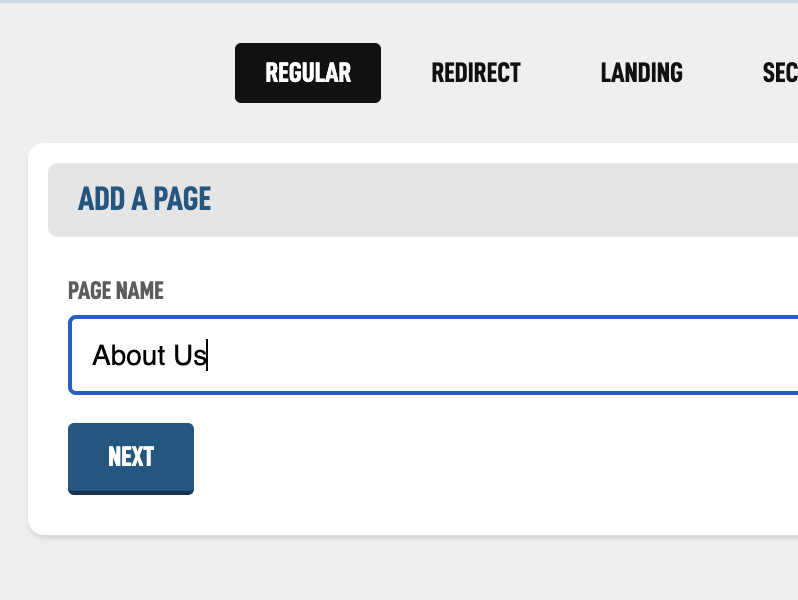
Let's add a regular page to see the options available and what all the settings mean. Let's make an About Us page. Make sure the regular is selected in the filters across the top and add a Title. Then tap Next.
Let's go over the settings in the Page Details box.
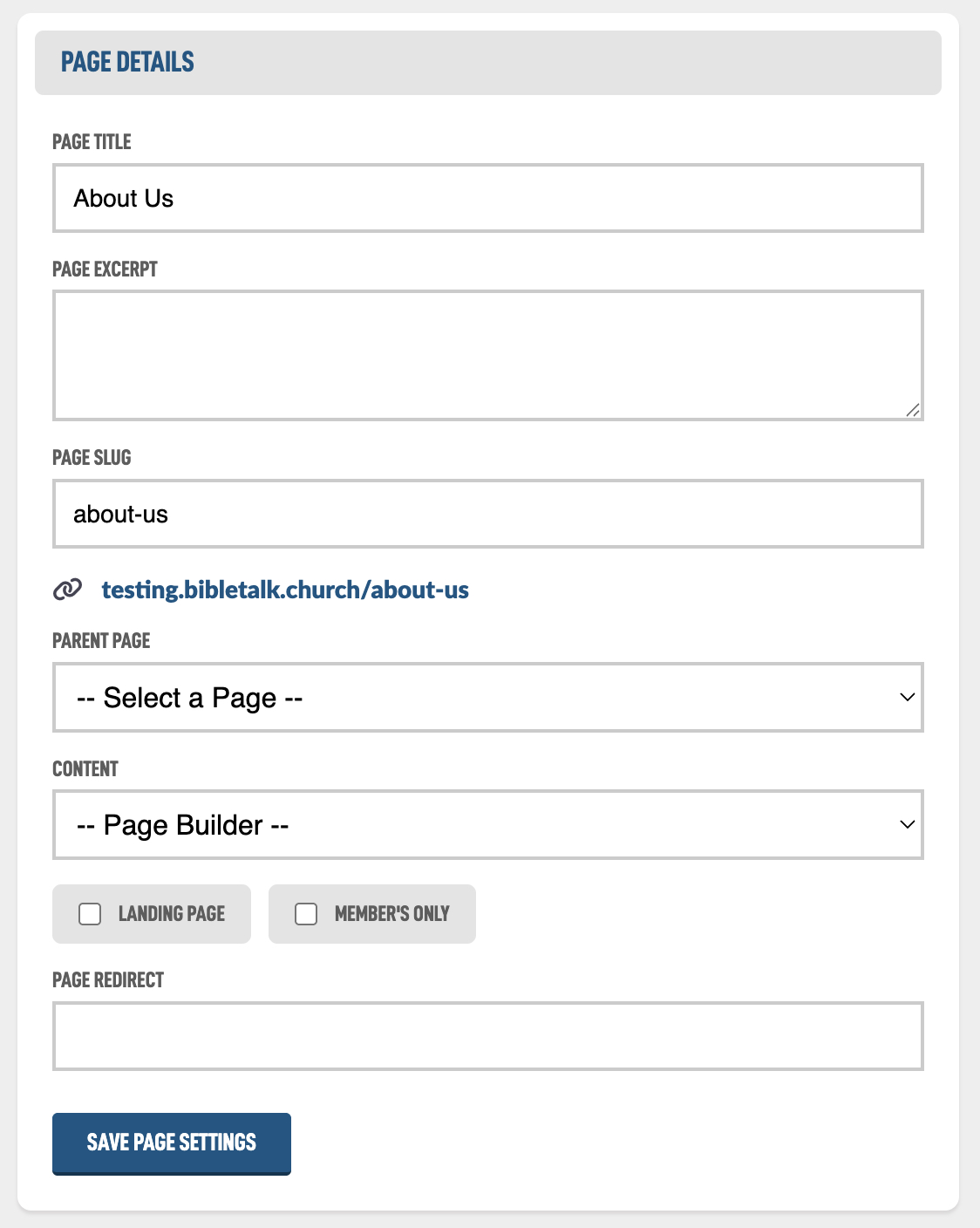
The Page Title is what you see in your main listing of pages in the admin in the Pages module so you can find what you are looking for. It is also the default text used when adding it to one of your site navigation spots. It will also show as Title of the page in visitors browser.
The Page Excerpt is a short summary that describes what this page is about and helps visitors know what to expect when they visit.
The Page Slug is a short, simple name that becomes part of the page’s web address and is easy to read and remember. In the example above, the system automatically created about-us from the page title. This creates a specific address for the page, so anyone can visit it directly from anywhere in the world.
The Parent Page is the page that sits above this one. Choosing a parent page helps organize your site and automatically creates a sub-navigation on the parent page so visitors can easily see and access its related pages. For example, About Us can be the parent page for Our Beliefs, Our History, Our Staff, etc. which will appear as sub-pages under About Us.
The Content setting lets you change a page between a Regular Page and a Module Page. This is helpful if you made a mistake or want to adjust how the page works. A regular page uses the Page Builder, which means you create the content yourself. When switching to a Module Page, the list will only show modules that don’t already have a page, helping ensure each module is connected to just one page.
The next two checkboxes allow you to change the page type to a Landing Page (landing page checkbox) or a Secure Page (member's only checkbox).
The final setting is Page Redirect. This setting turns the page into a Redirect Page. Enter a full web address, and anyone visiting this page will be automatically sent to that location instead. For example if you create a redirect page with the page slug give (your.church/give) you can send people to your church's donation site like donate.churchgiving.com.
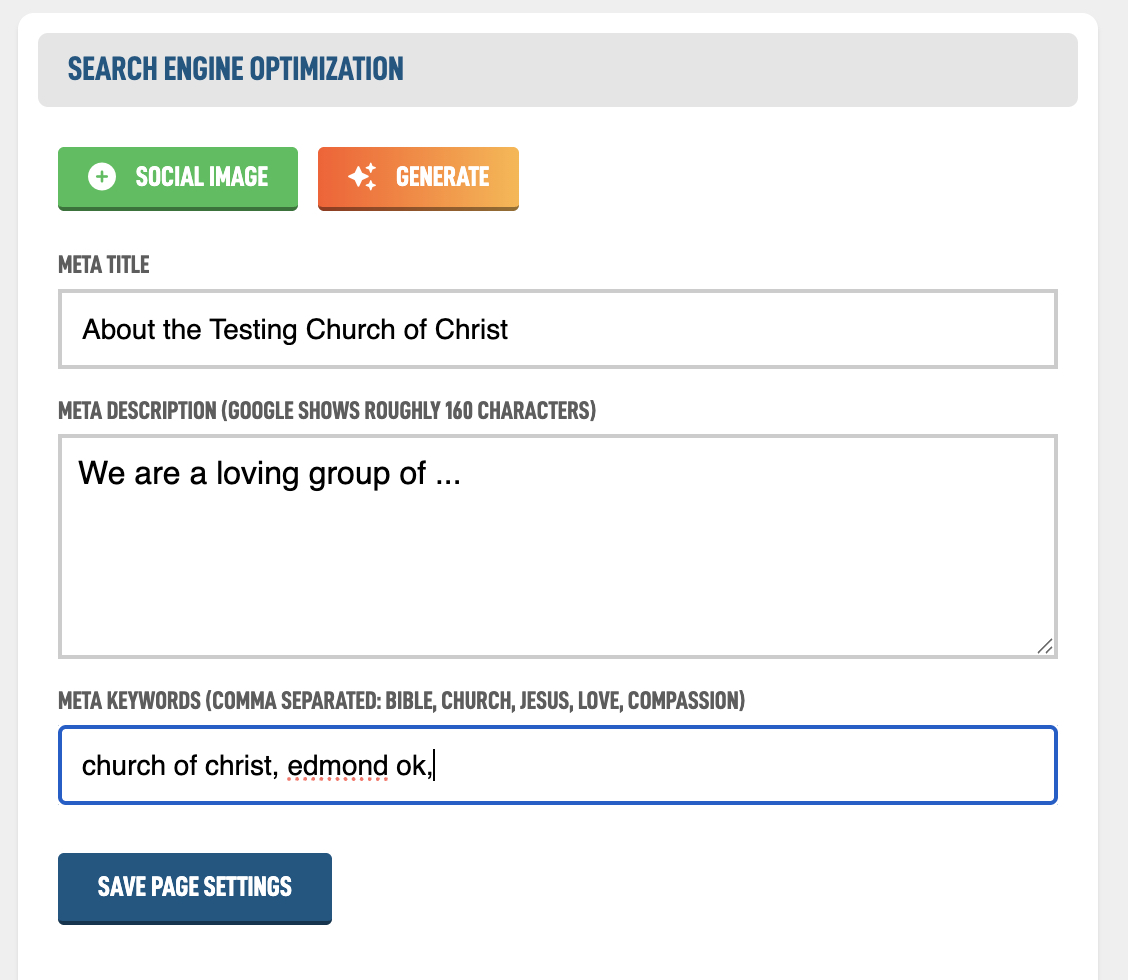
The SEO options let you control how your page appears in search results and when it’s shared online. You can set a custom page title, description, and keywords to help people find the page more easily.
Improving your SEO helps more people find your church online. While the page title and excerpt work well as a starting point, customizing your SEO lets you clearly explain what the page is about, who it’s for, and why it matters. This can help your church show up more accurately in search results, make your pages more inviting to click, and present a clearer message when someone shares your page with friends or family. In short, better SEO helps your church reach people who are already looking for what you offer.
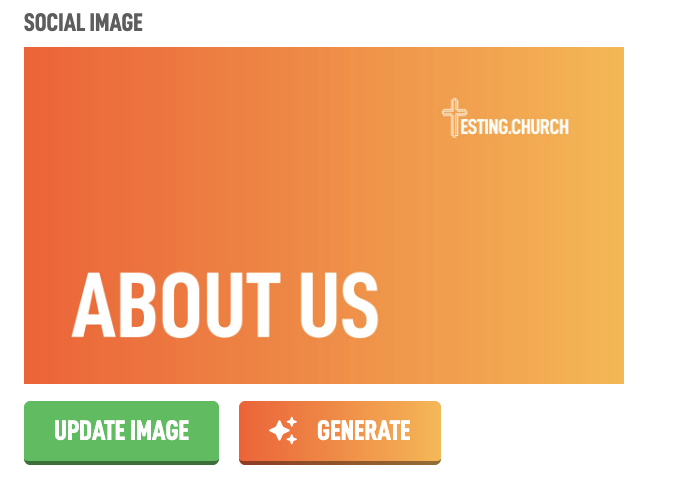
You can use the Generate button to create a share image based on the page title, which is what people will see when the page is shared in a text message or on social media. If you prefer, you can click Update Image to upload your own custom image instead. Using Generate will automatically include your site logo and gradient colors, helping keep a consistent look across your website.
This is an important section and is explained in more detail in its own Help Guide. You can find the link below.
If you are starting with a new Page and creating the page redirect, you will see three options.
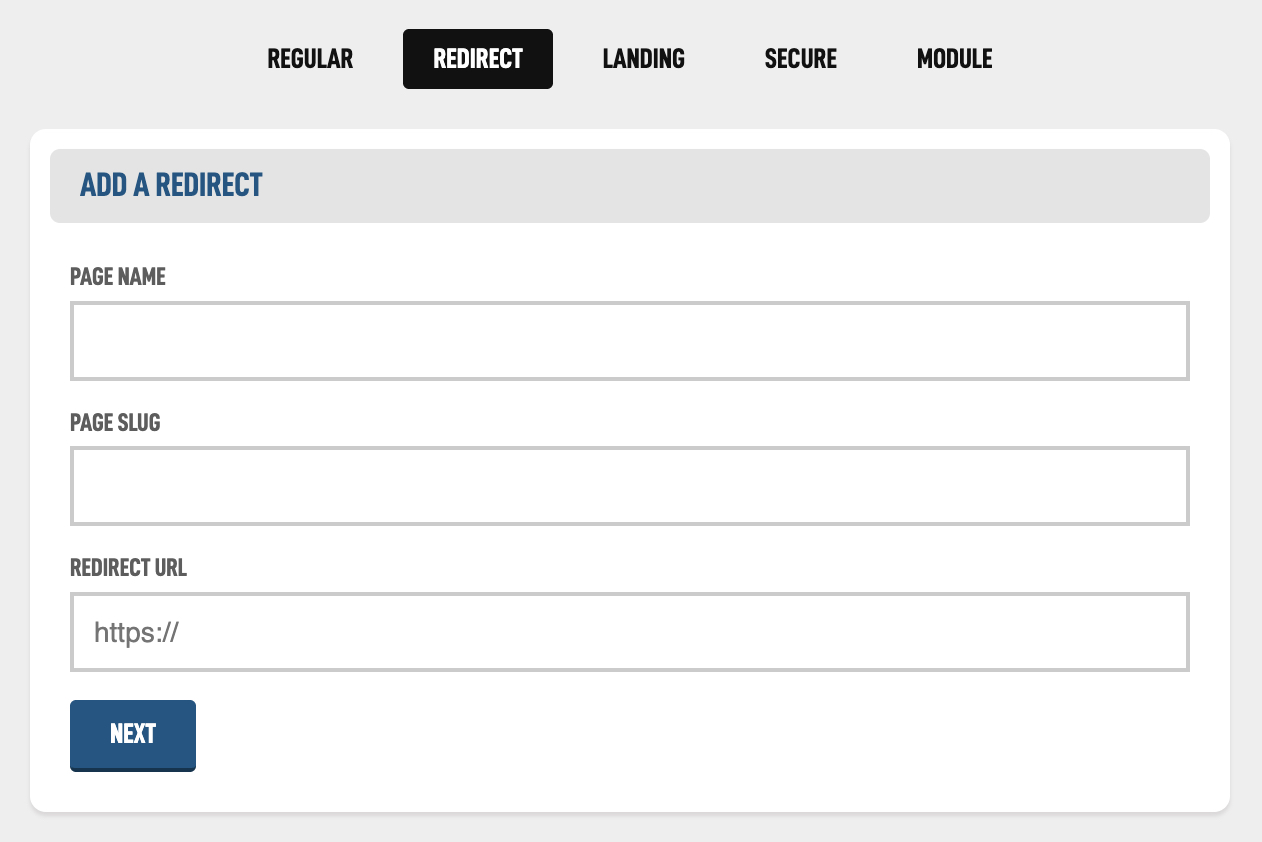
The Page Redirect option is used to send visitors from one page to another. This can be from your own site to another part of your own site, or from your own site to another website anywhere on the internet.
For example if you wanted to link to your church's giving platform, you could create a redirect page called "give" so your website you would share with your members would be yourchurch.org/give and then that would redirect to whatever page your giving platform gives you (donate.churchgiving.com).
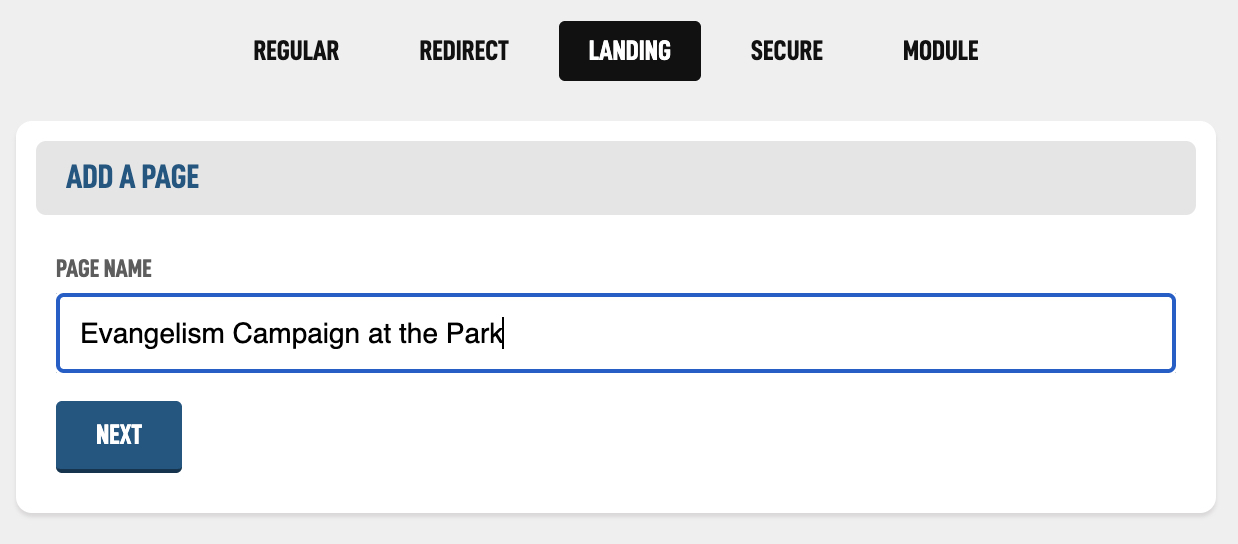
A landing page is a single web page specifically created to guide visitors towards taking a particular action. Like your homepage, landing pages are often the first experience visitors have with your website and are used as the target page for a marketing campaign. These work exactly the same as Regular page but allows you to organize them in a Landing page section so you can track them a little more easily.
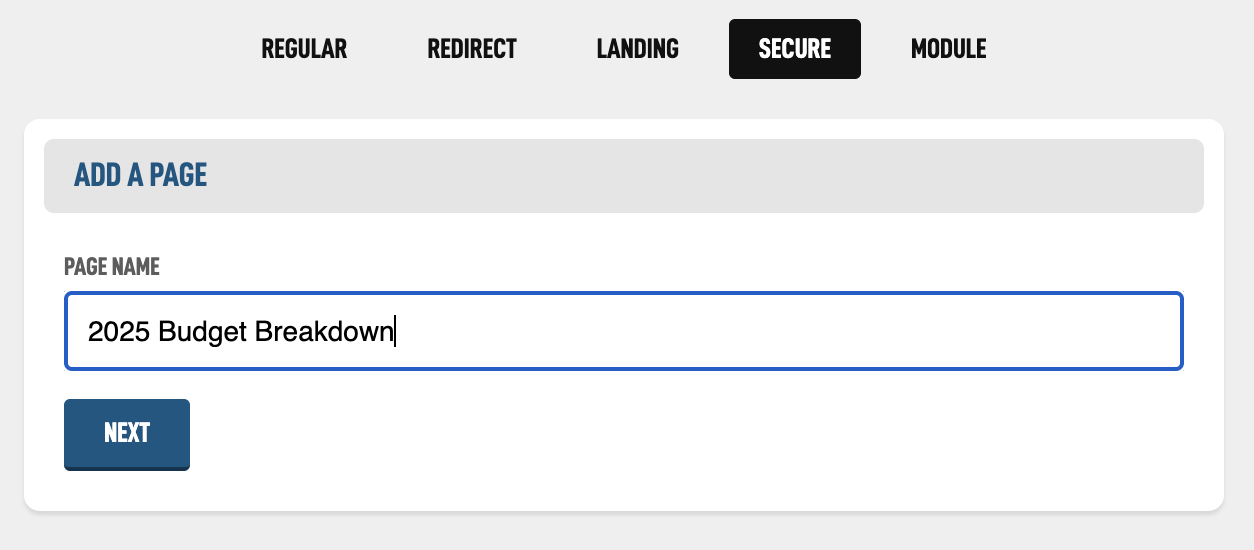
A secure page is only visible to members who are logged in. If someone isn’t signed in, they’ll be asked to log in before they can view the page. The content of these pages work the same as the Regular page but user's must log in first.
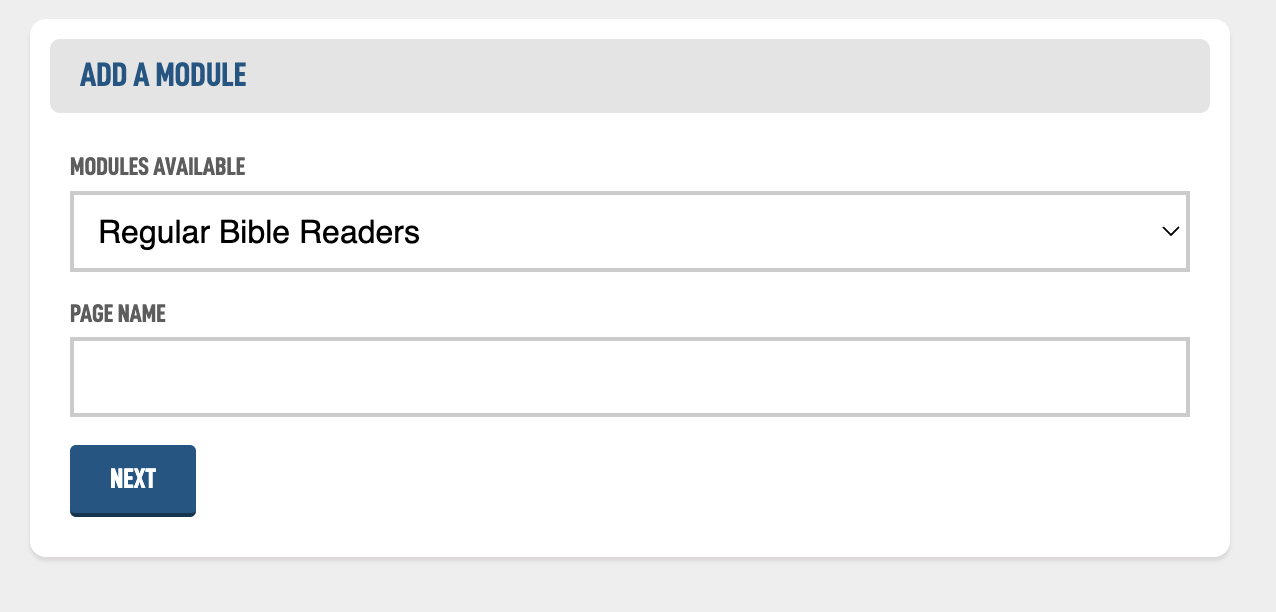
A module page gives a module its own page on your church website that members and visitors can view. It connects your modules to your public-facing site by taking the information stored in those modules and displaying it in a clear, organized way. In simple terms, modules hold the content, and the Module Page is what makes that content visible on your website. Each module can only have one page associated to it.

