First you will need to navigate to the Videos module in your admin.
Then in the top left tap + Video.

Then you need to find your video in YouTube and copy the full URL of the video page. It should look like this:

In the first field of the Add screen, paste the URL.
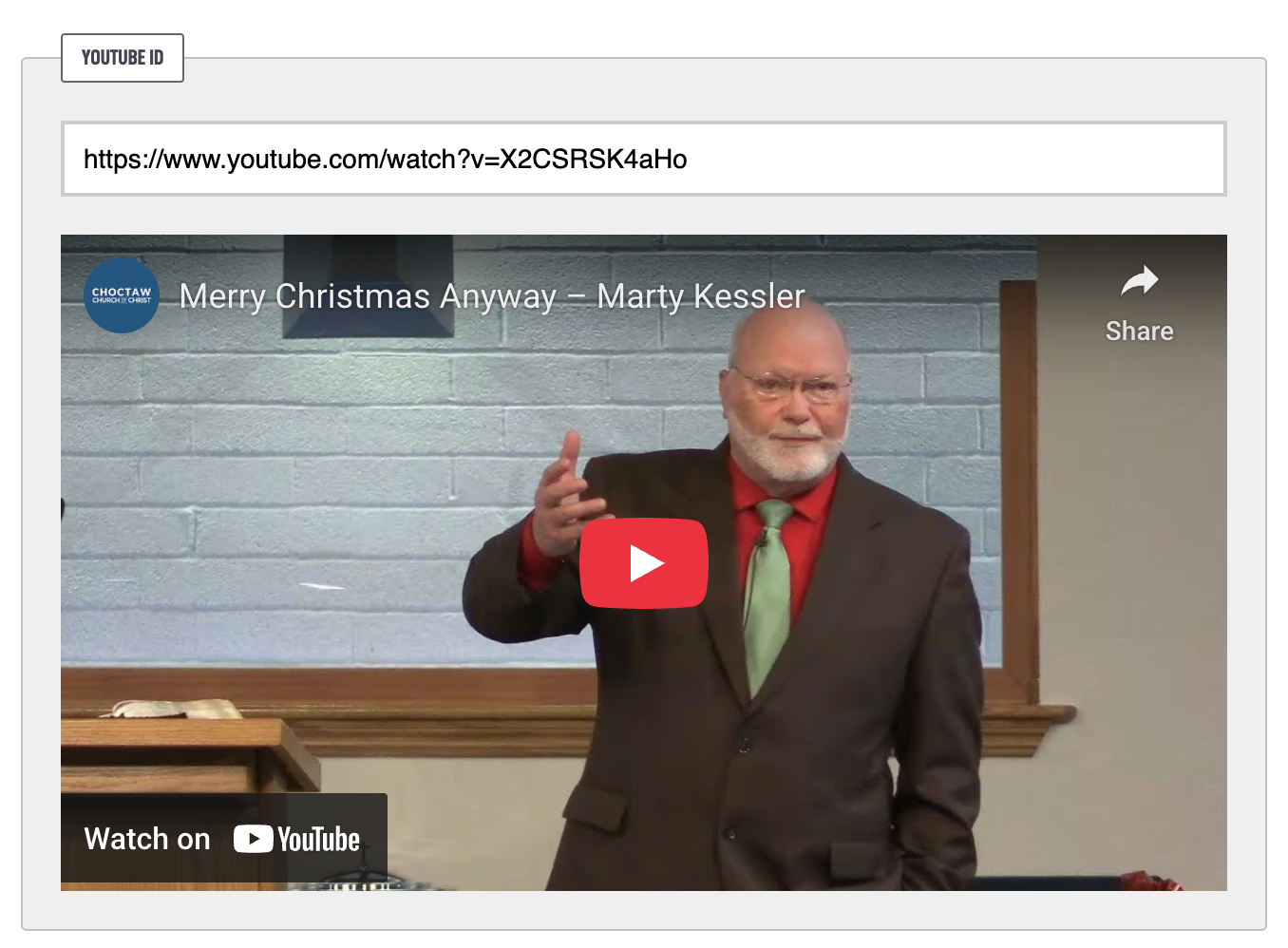
If it finds the video it should load the video below the field instantly. Then you can move down the form to the Main Details.
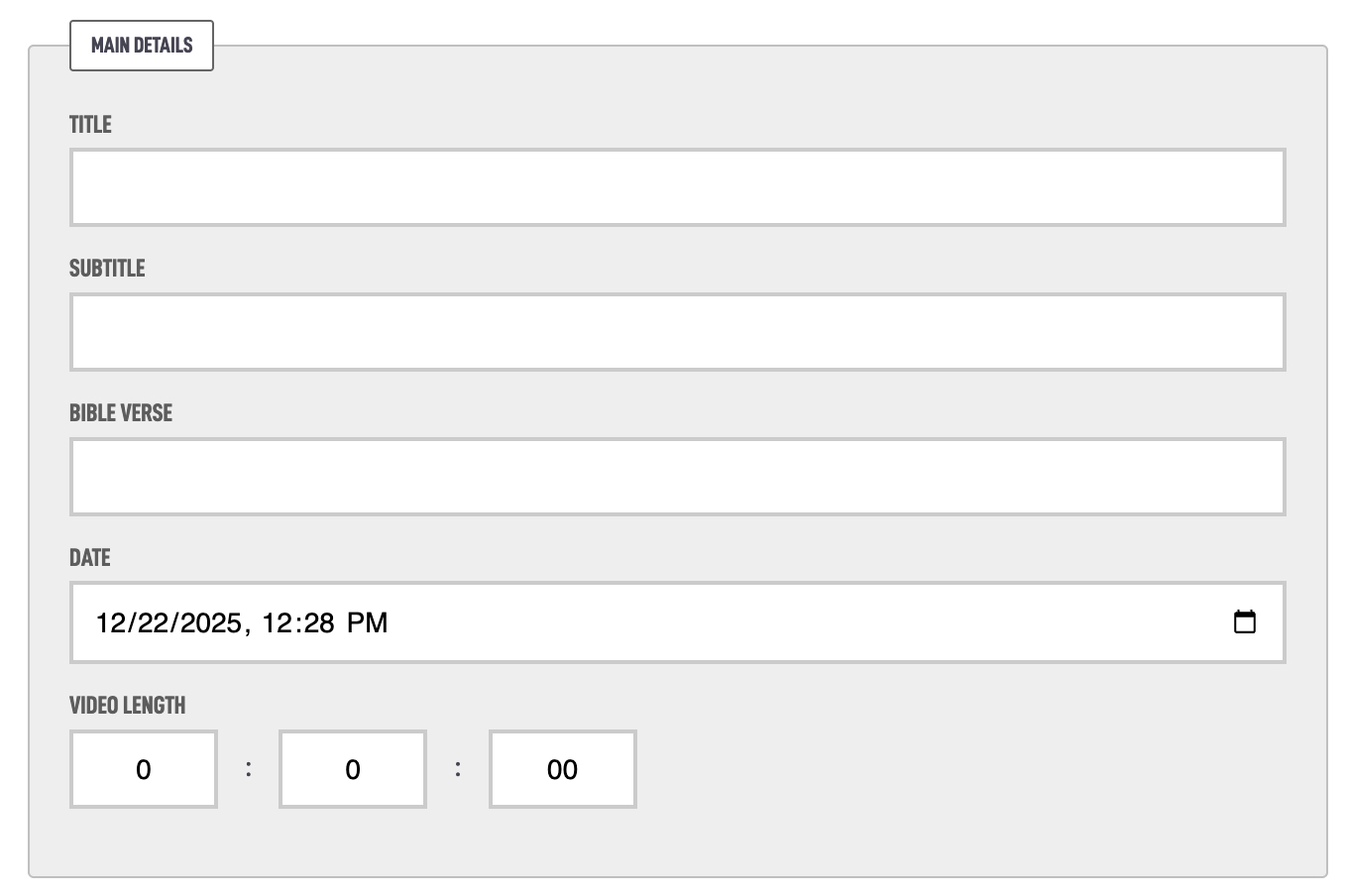
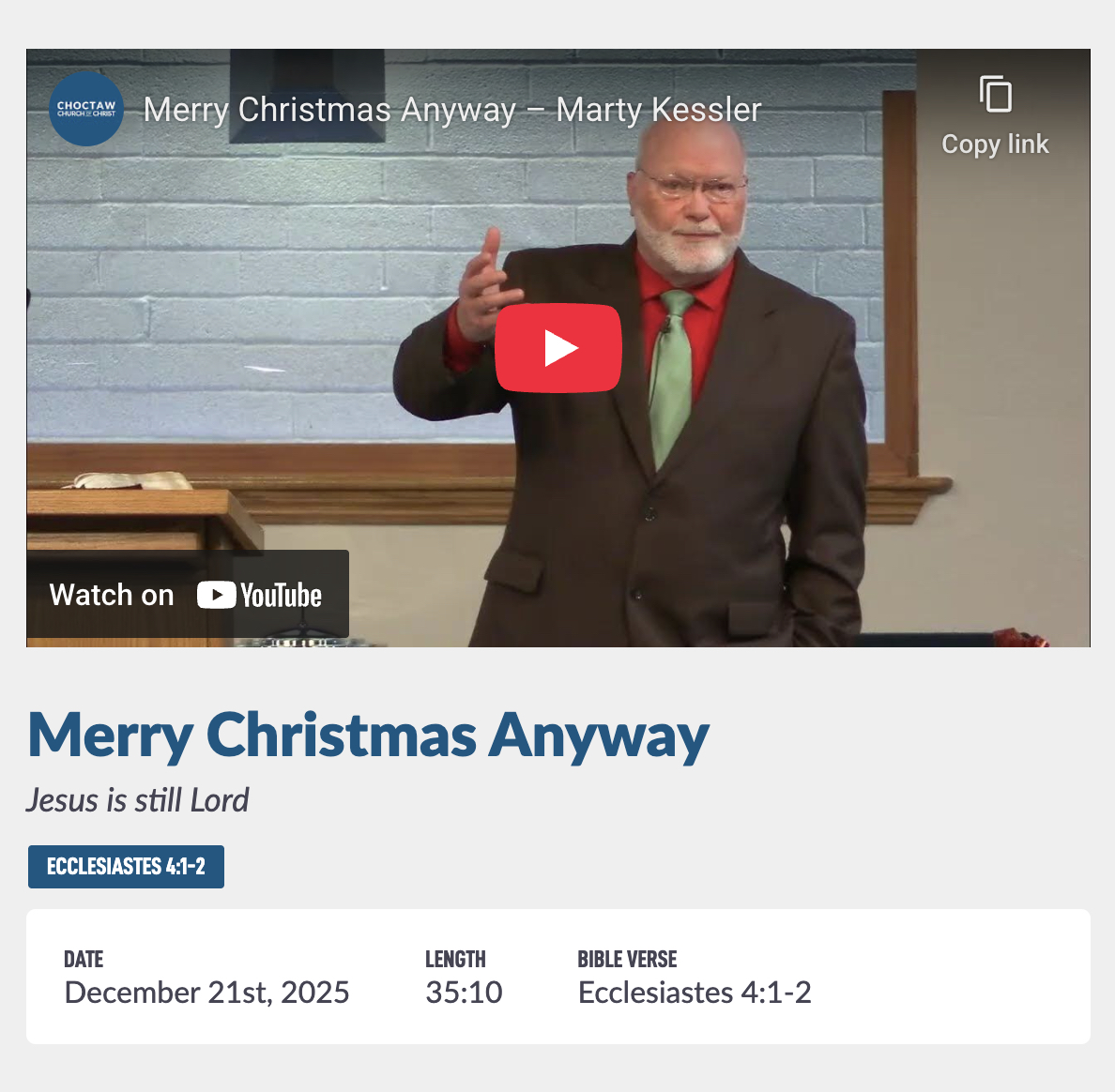
You can add a main Title for your video and a Subtitle if you'd like. The title will be a bit more bolded in display with the subtitle italicized under it.
If you have a specific Bible Verse associated to your video you can enter it in that field.
The Date of when the video was recorded, also used for sorting.
The video length in Hours : Minutes : Seconds.
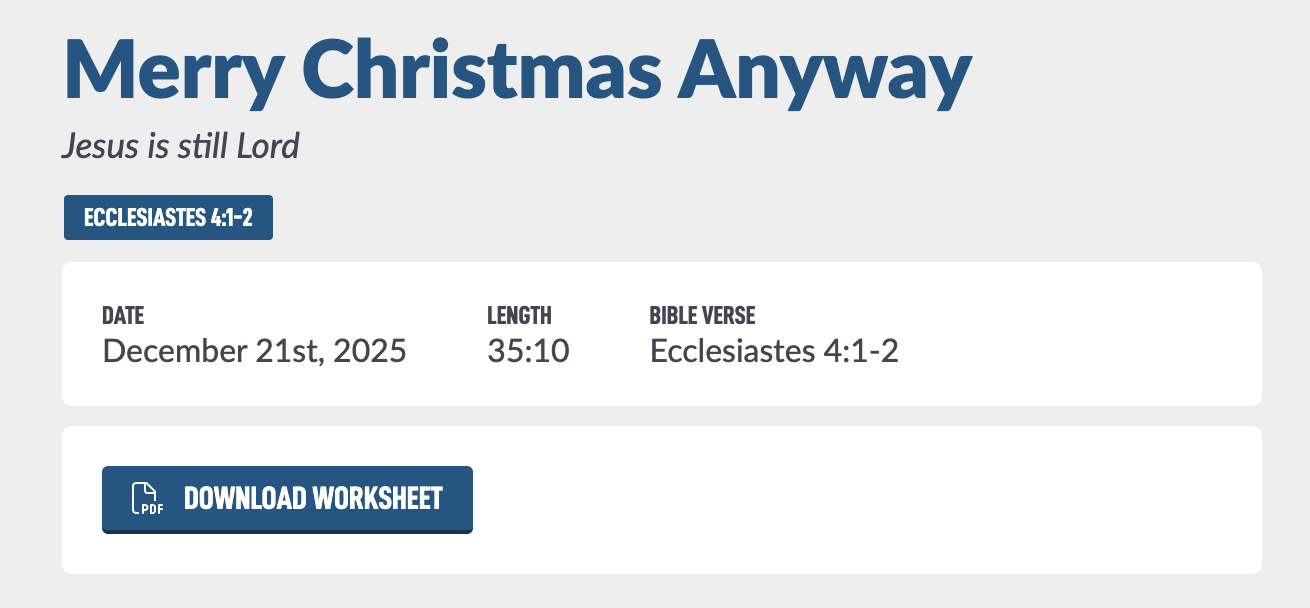
When you enter all these in, they will look like this on your public facing website.
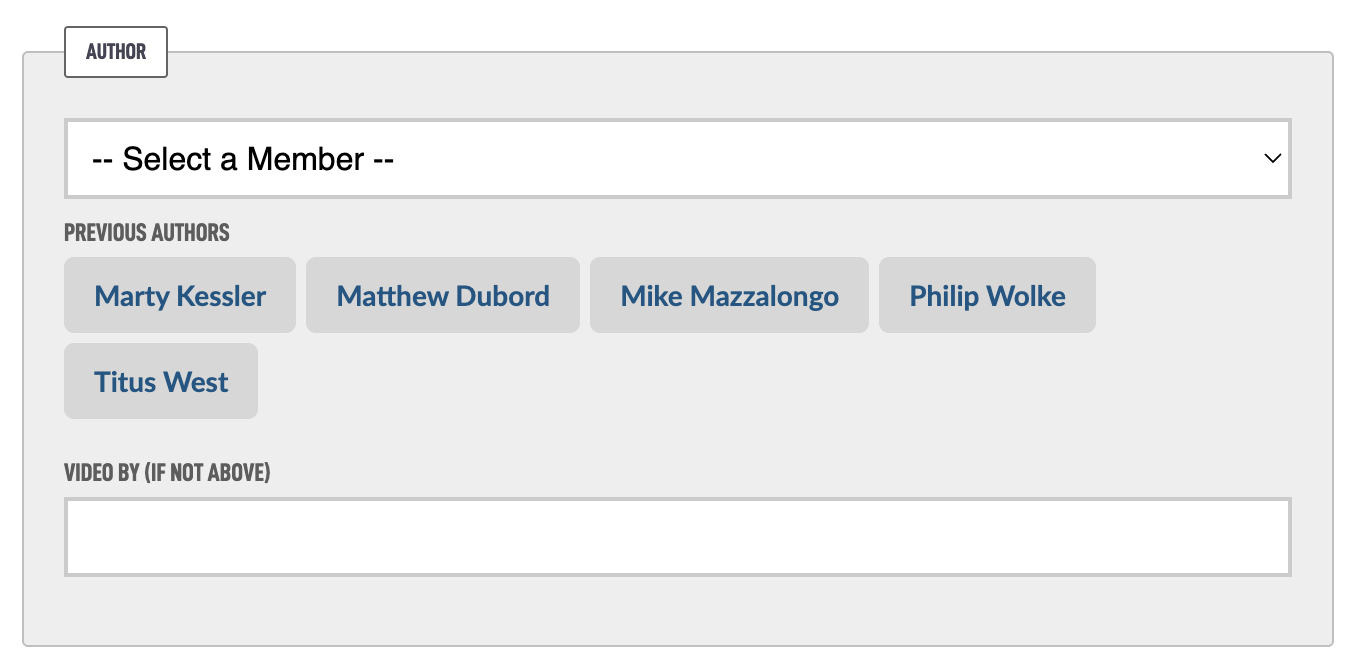
The next section of the video form is an Author, you can select a member from your Congregation or a custom name. As you add videos, the most comment authors will start to appear below the Member select box and you can simply tap their names going forward.
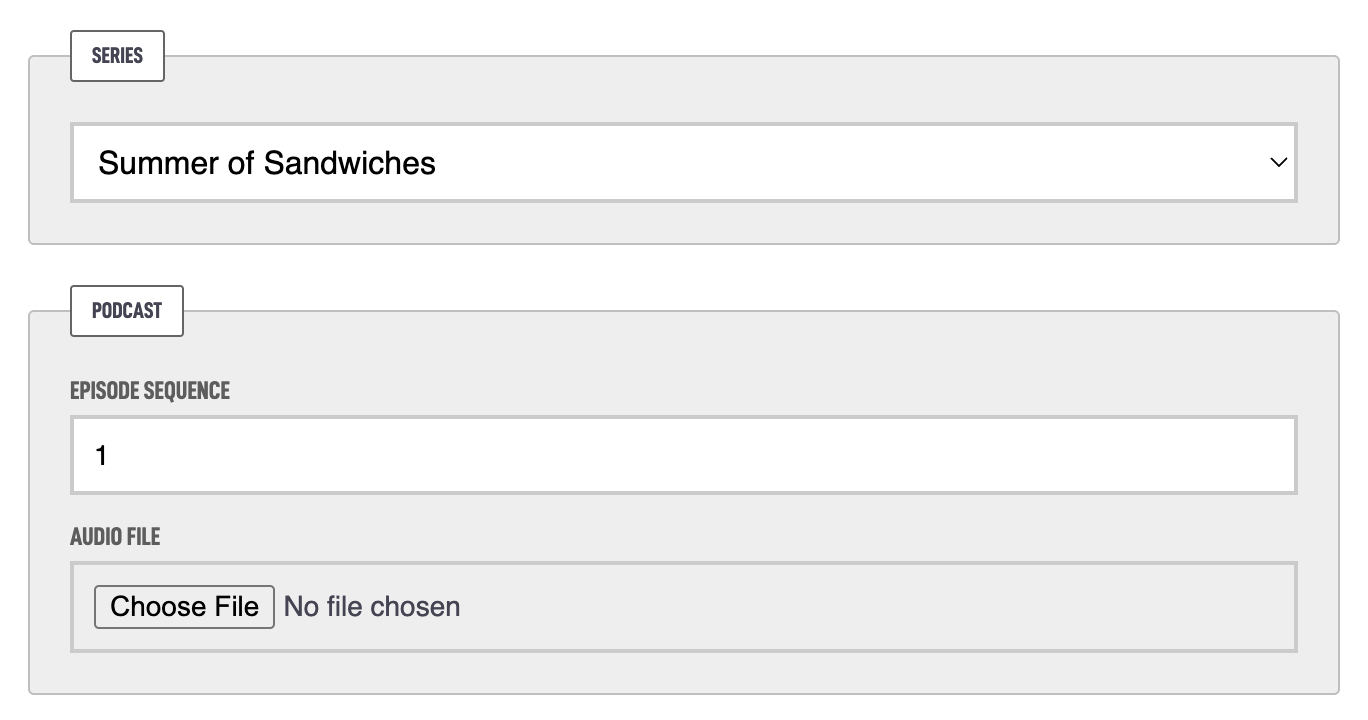
The next options is the ability to associate the video to a Series and add the Podcast details. Simply select the series and then if you plan to upload an audio track for a podcast, specify an sequence number and choose the audio file.
You can skip these for now and come back to complete them later if you don't have the audio ready yet. Also if your podcast is not episodic perhaps like an on-going sermons podcast, you do not need to add the episode sequence number, you can if you want but it is optional for those types of podcasts.
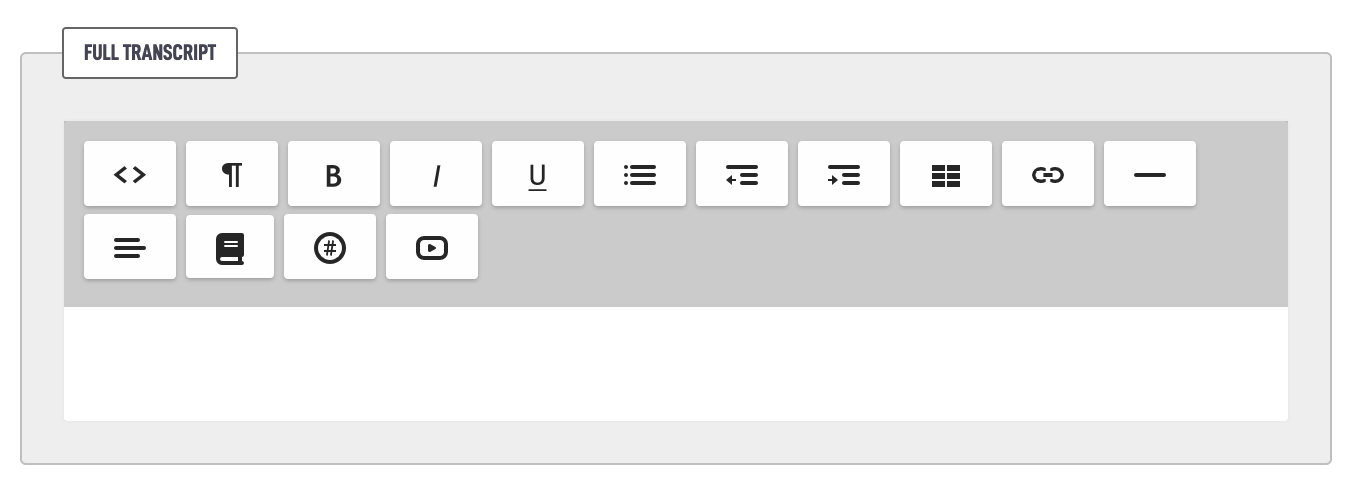
The last option is the ability to upload the full transcript of your video. There are tools online that can grab the entire Captions file from YouTube and convert it into a nice transcript that you could paste here to help people find your videos.
If you'd like to upload a Lesson Notes Worksheet, perhaps like one you hand out to people who attend the in-person class, you can do that on videos as well. To do that you we need to jump over to the Media module. If you do not have permission to access that area of the admin, you'll need your administrator to do this part for you.

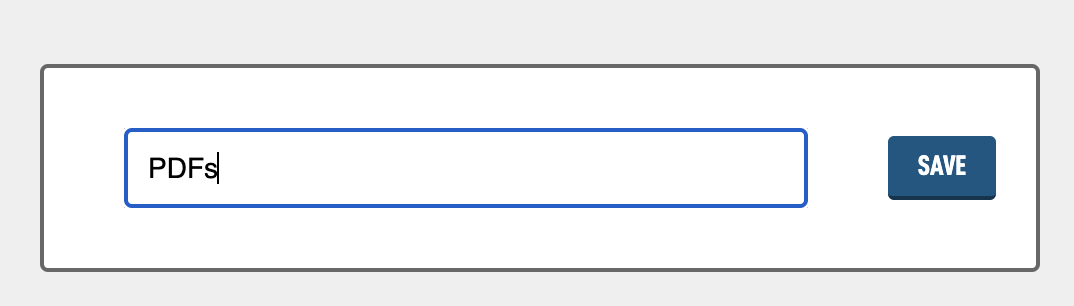
In the Add a Folder form, create a folder with the exact name "PDFs". The folder name must be pdfs for the Video module to find it. Hit Save.
You should then land on a page that looks like this.
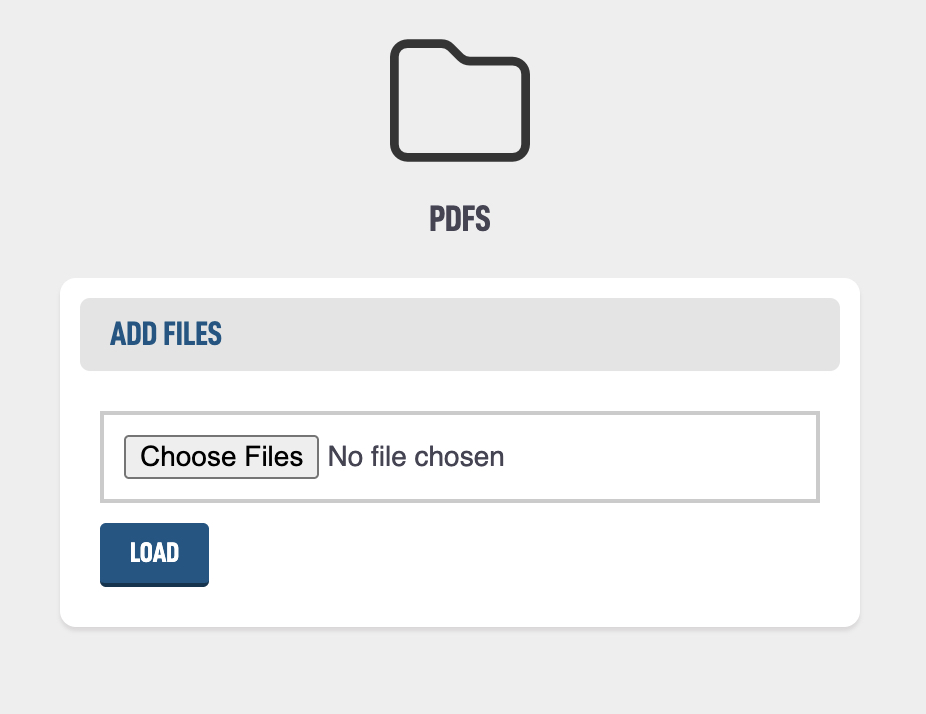
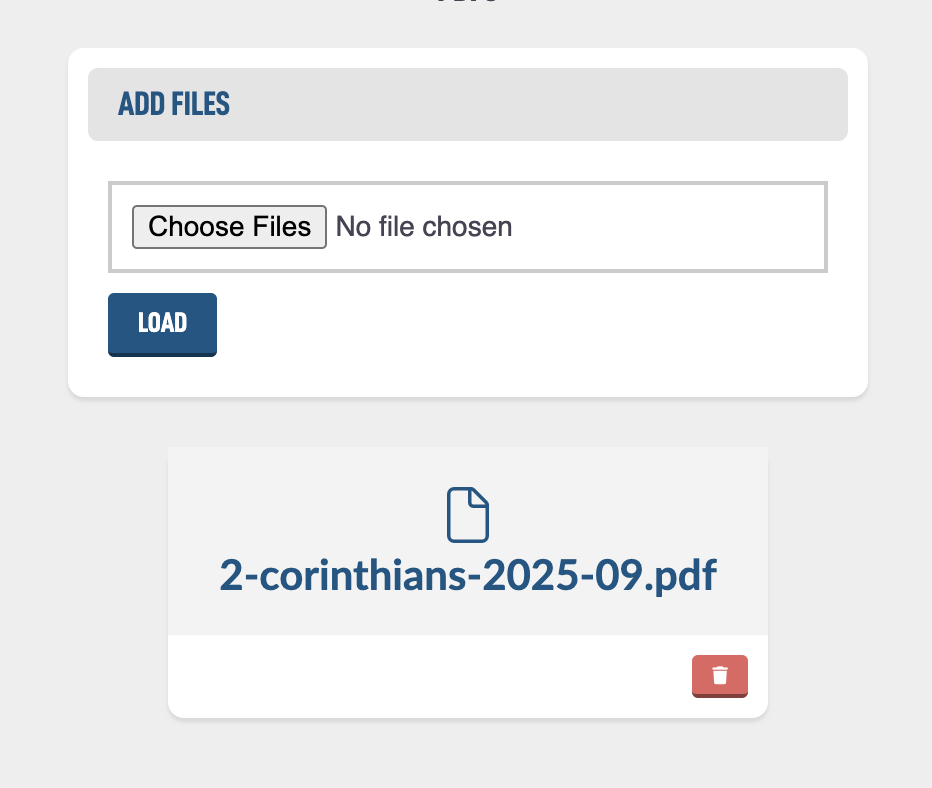
You can then add your worksheet here using the Choose files option. After you hit Load, it will show up below the form.
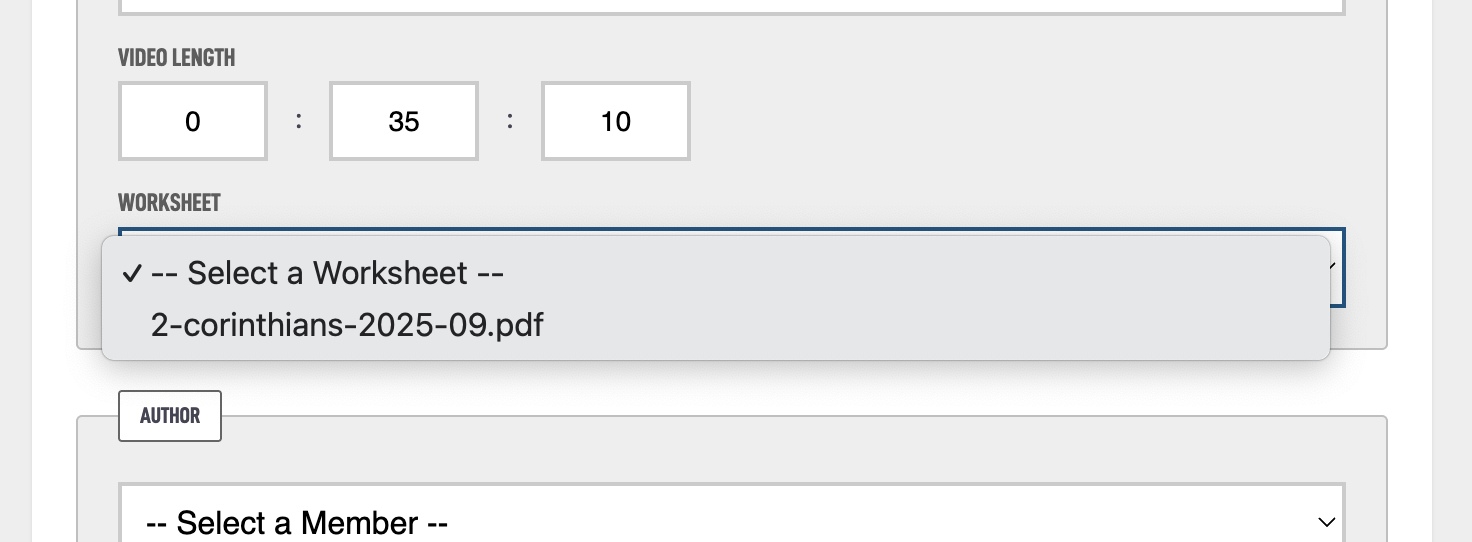
Now of you go back to your video, you can select this worksheet from a new select box that appears in the video edit form.
And on the public website when a users taps all the way to a specific video, there is now an option to Download the worksheet.